Joyal

How to

Give a reward at your Square till

Set a reward up once in Joyal, and it comes off the bill by itself at your Square till. Joyal does the Square side for you.

A red box marks the thing to tap. Tap any picture to see it full size. Everything happens on your phone, in Joyal and in Square, and every step says which one.

Set up · In Joyal

Switch it on

A couple of minutes in your Joyal app. You tell Joyal what the reward gives away and the most it can take off one sale. Joyal sets up the rest in Square for you.

1

Open Rewards

In Joyal

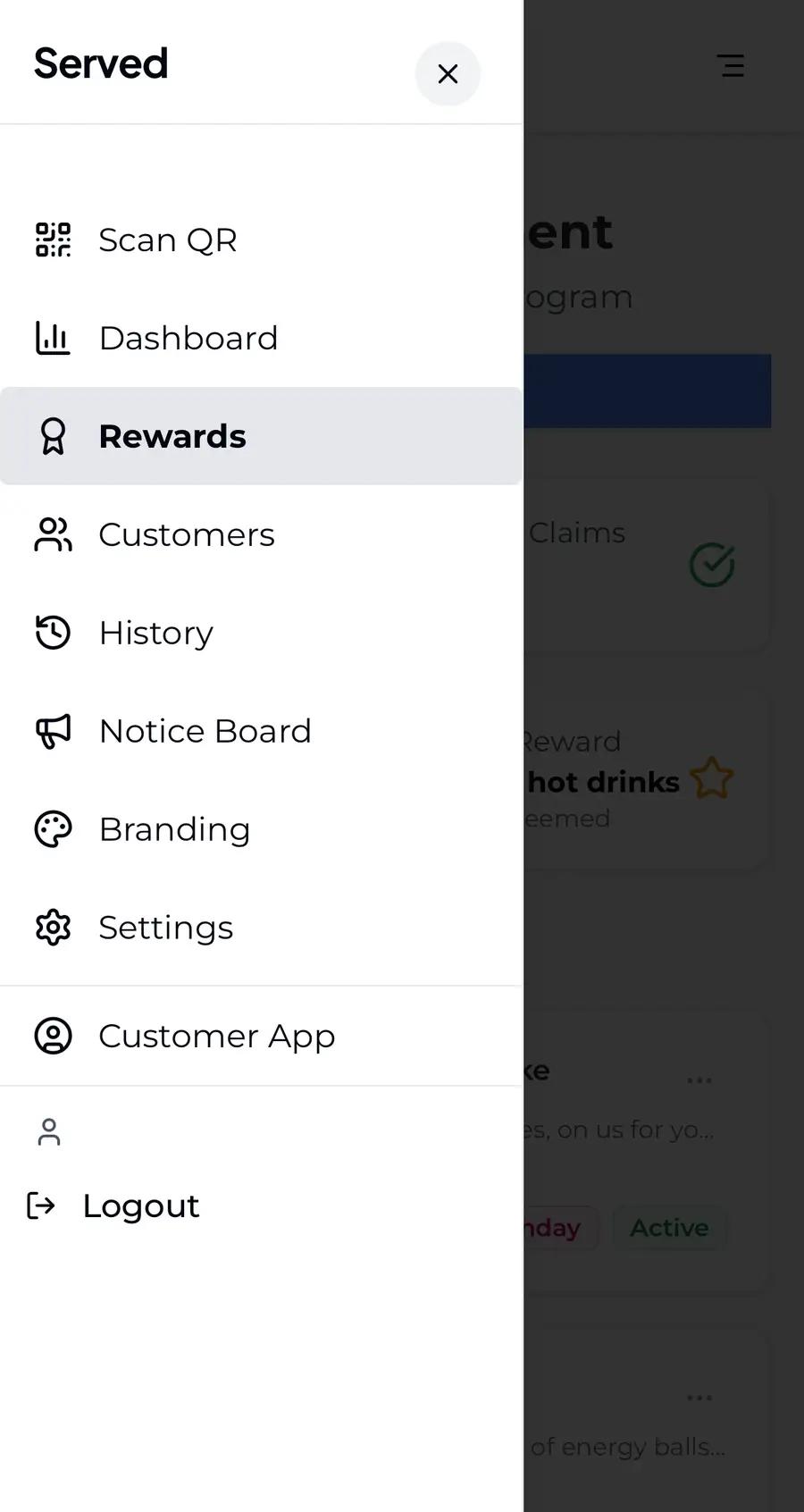
In your Joyal app, tap the three lines at the top right. A menu slides out. Tap Rewards.
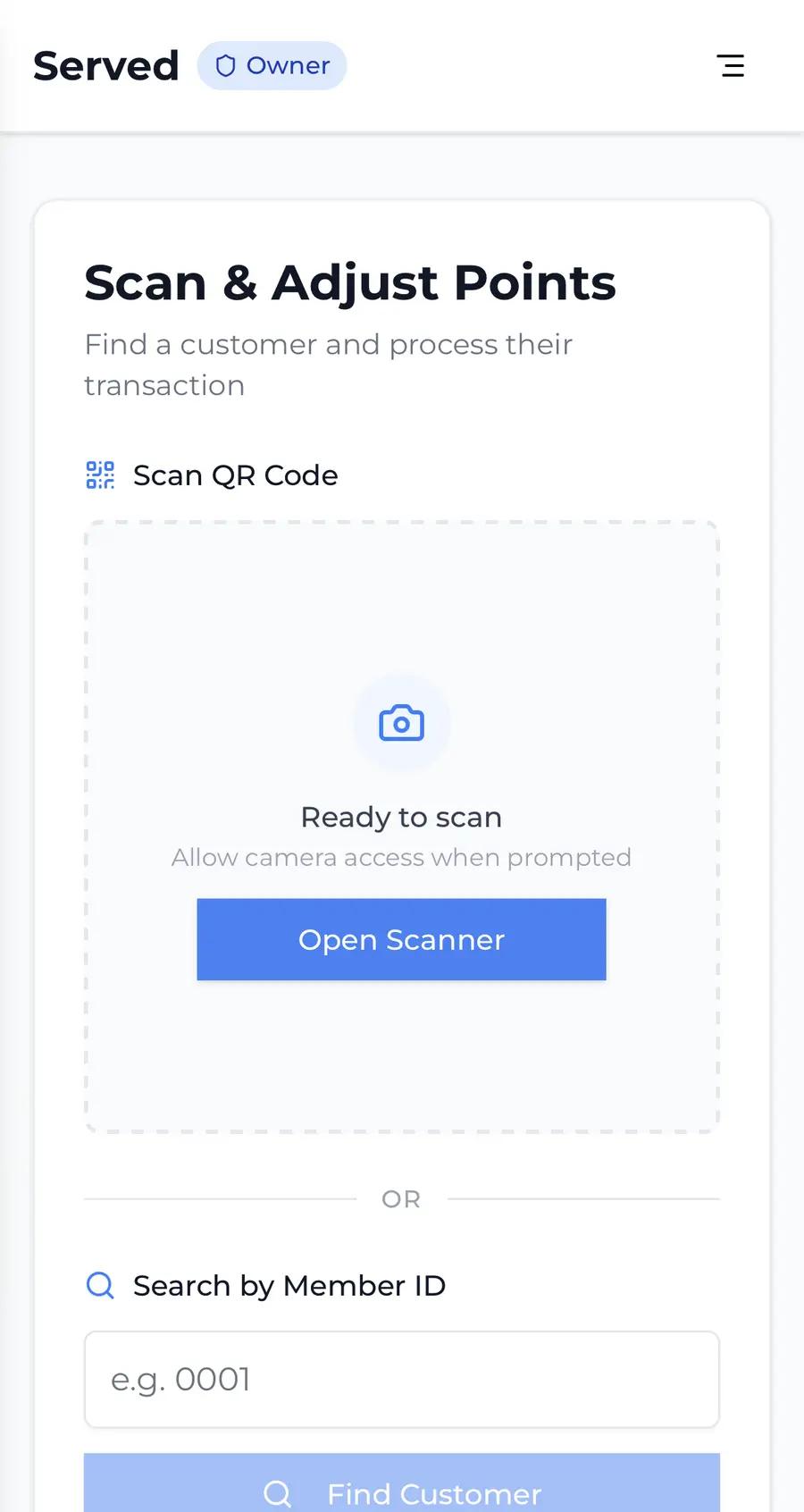
Joyal's scanner page for an owner, with the three-line menu button at the top right marked
Joyal, firstThe menu button.
Joyal's menu slid open, with Rewards marked
Joyal, thenRewards.
2

Open the reward

In Joyal

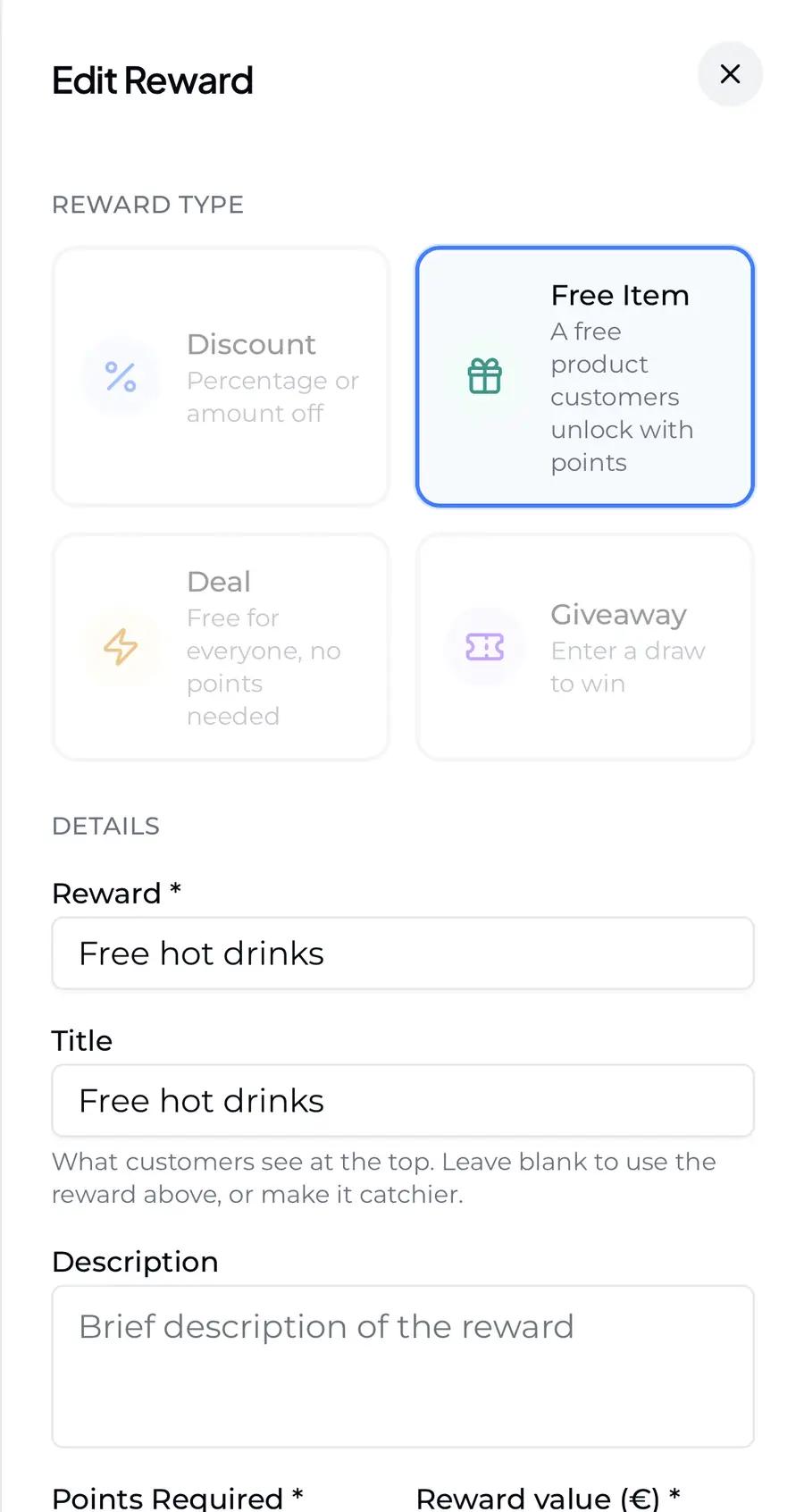
Your rewards are listed as cards. Find the Free Item reward you want and tap the three dots at the top right of its card, then tap Edit. The reward opens for editing, with Free Item highlighted at the top. Scroll down past the details.
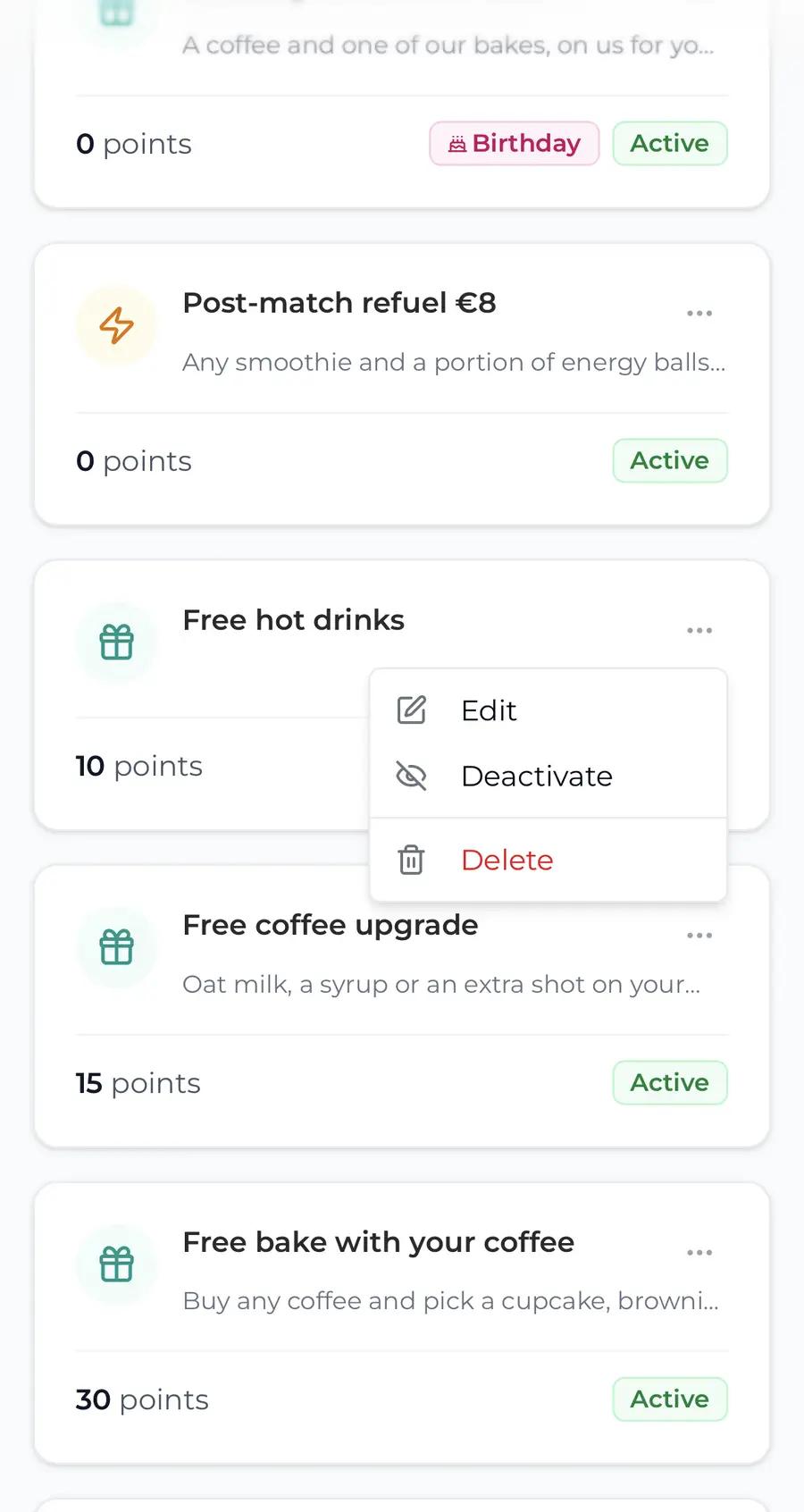
Joyal's Rewards page with a card's three-dot menu open, the dots and Edit both marked
Joyal, firstThe three dots, then Edit.
Joyal's Edit Reward form with Free Item highlighted under Reward type, marked
Joyal, thenFree Item, highlighted in blue.
Making a new reward instead? Tap Add Reward at the top of the page, choose Free Item, and fill in its name and points as usual. The rest of this guide is the same.
3

Switch on Redeem in Square

In Joyal

Below the Active tick box you will find a box called Redeem in Square. Tap the switch at its top right so it turns dark. More choices appear underneath.
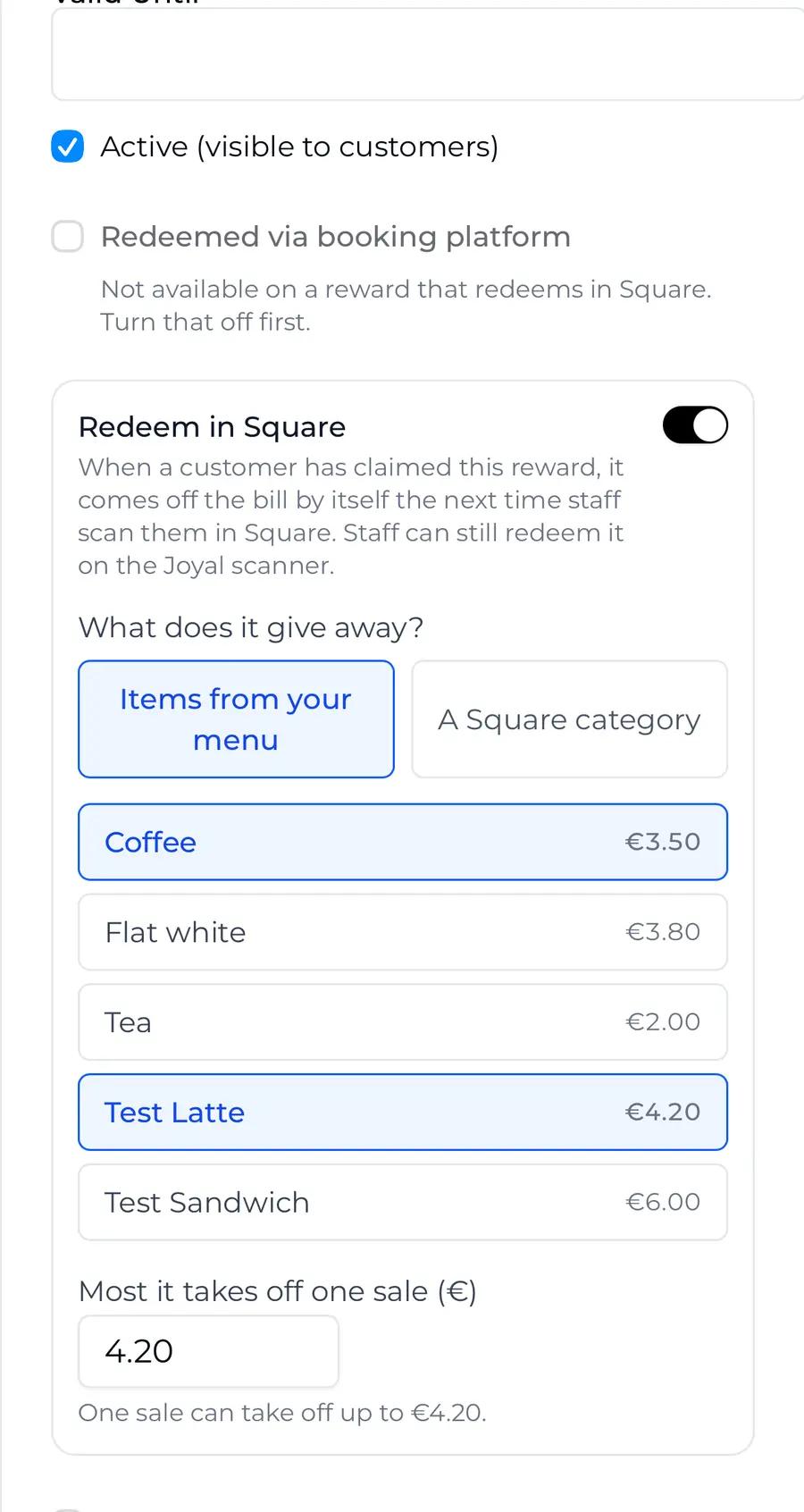
The lower part of the reward form, with the Redeem in Square box and its switch marked
JoyalThe switch, on.
If there is no Redeem in Square box It only appears on a Free Item reward, and only once Square is connected. Check the reward type at the top of the form, and Settings, Square.
4

Pick what it gives away

In Joyal

Under What does it give away?, tap Items from your menu. Your Square items are listed with their prices. Tap each item this reward can be; a tapped item turns blue, and tapping it again unticks it. For a reward like “any hot drink”, tap A Square category instead and tap the category: every item in it counts, including items you add to it later. It is one or the other, items or a category.
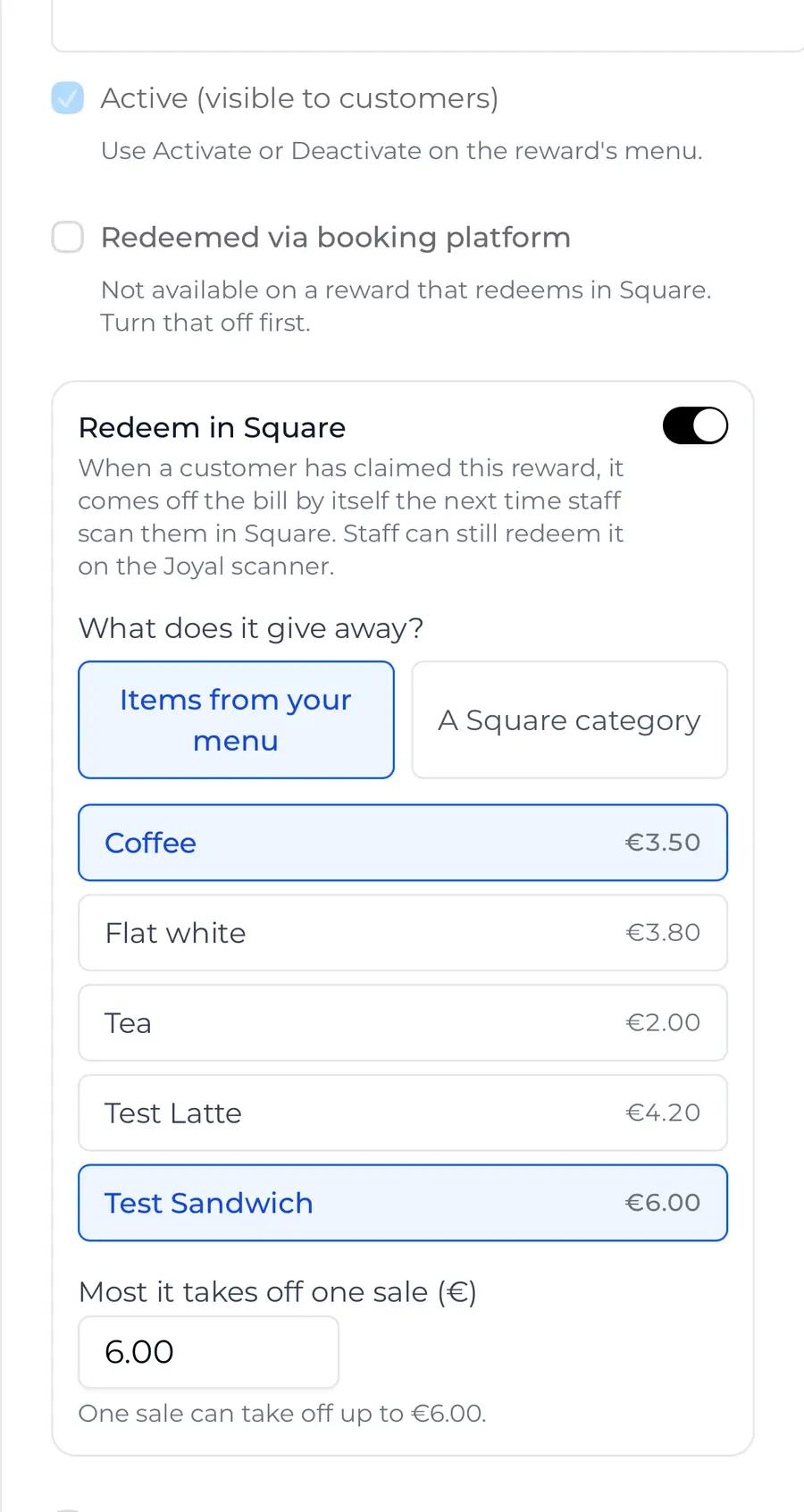
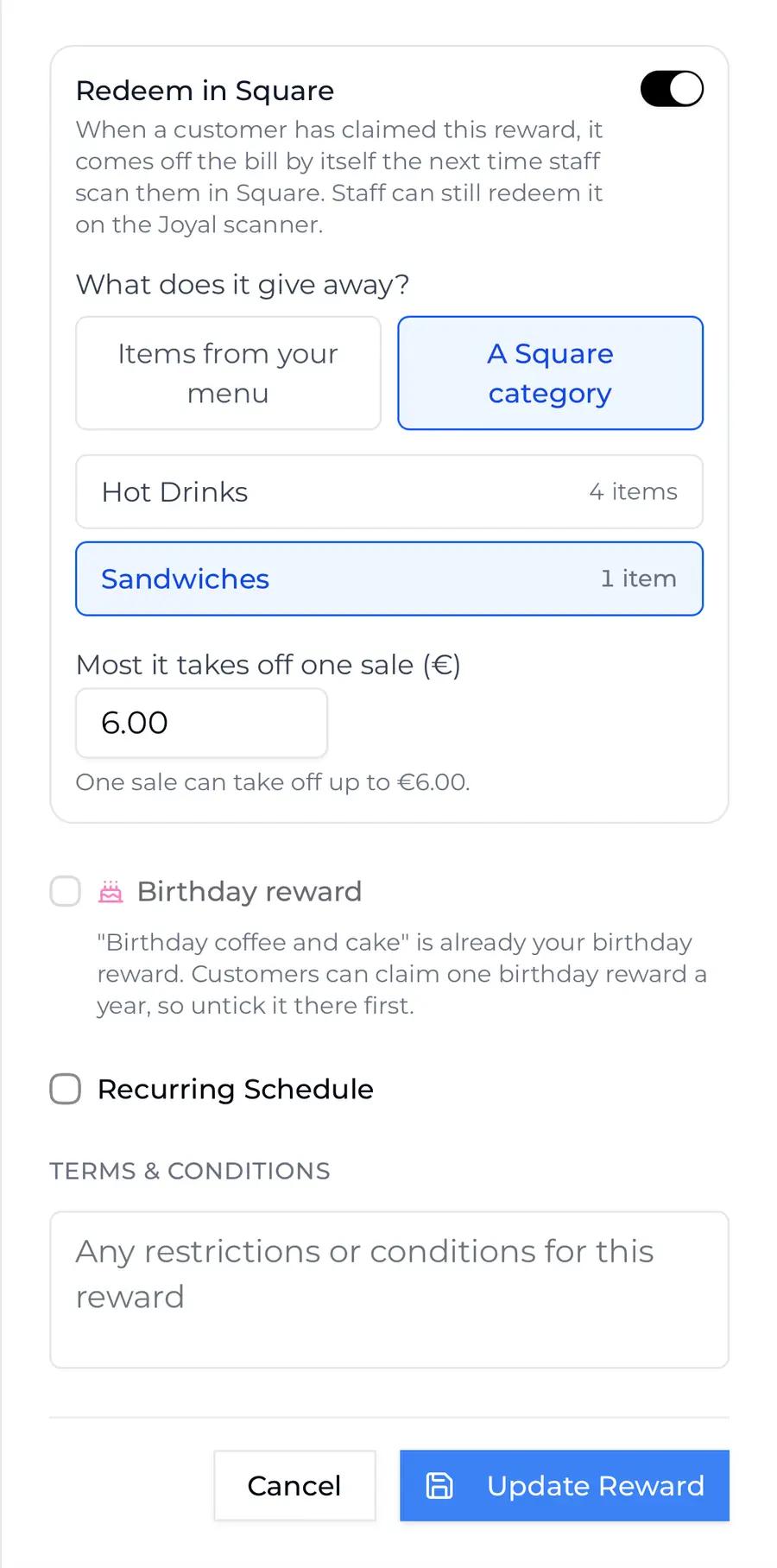
Items from your menu chosen in the Redeem in Square box, with Coffee and Test Sandwich turned blue in the item list, both marked
ItemsItems from your menu, and two items chosen.
A Square category chosen in the Redeem in Square box, with the Sandwiches category turned blue, both marked
Or a categoryA Square category, and one category chosen.
5

Check the most it takes off

In Joyal

Under Most it takes off one sale (€), Joyal has typed in the price of the dearest item you picked. In our example the reward can be a Coffee at €3.50 or a Test Latte at €4.20, so Joyal typed 4.20. If you changed it to 3.50, a customer taking the latte would pay the 70 cent difference. So if your reward is any coffee, set it to your dearest coffee and every one is covered. It is the most one sale can take off, so a customer who orders two of the item gets one free. Leave it, or tap the box and type your own figure.

The Redeem in Square box with the Most it takes off one sale box reading 4.20, marked
JoyalFilled in for you with the dearest item's price.
An item with no price in Square It shows Priced at the till in the list, and Joyal cannot suggest a figure. Type the price you charge for it.
6

Save

In Joyal

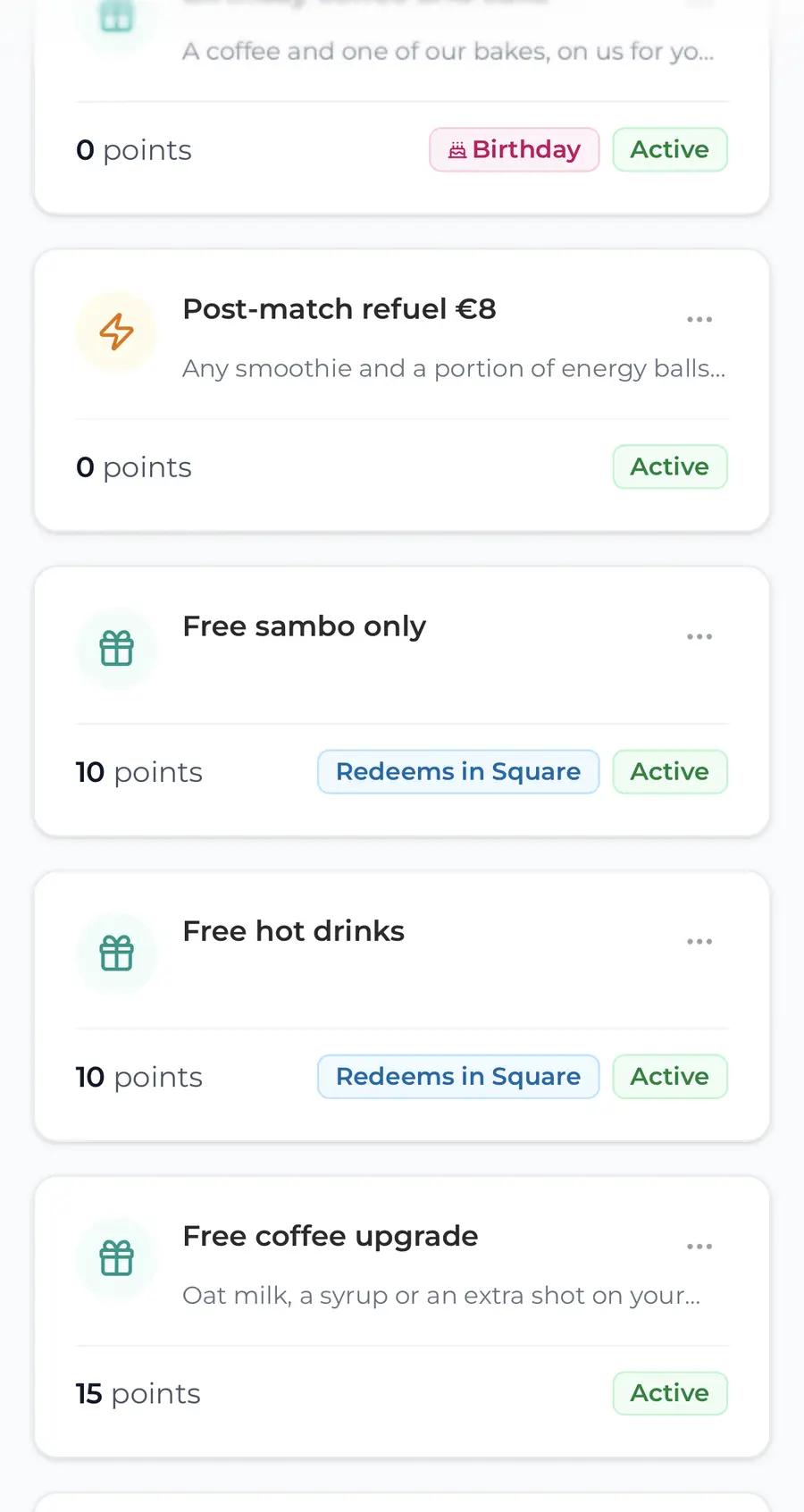
Scroll to the bottom and tap Update Reward (Create Reward for a new one). Joyal saves the reward and sets it up in your Square account. The form closes, and the reward's card now reads Redeems in Square. That is it: the reward is live at your till.
The foot of the reward form with the Update Reward button marked
Joyal, firstUpdate Reward.
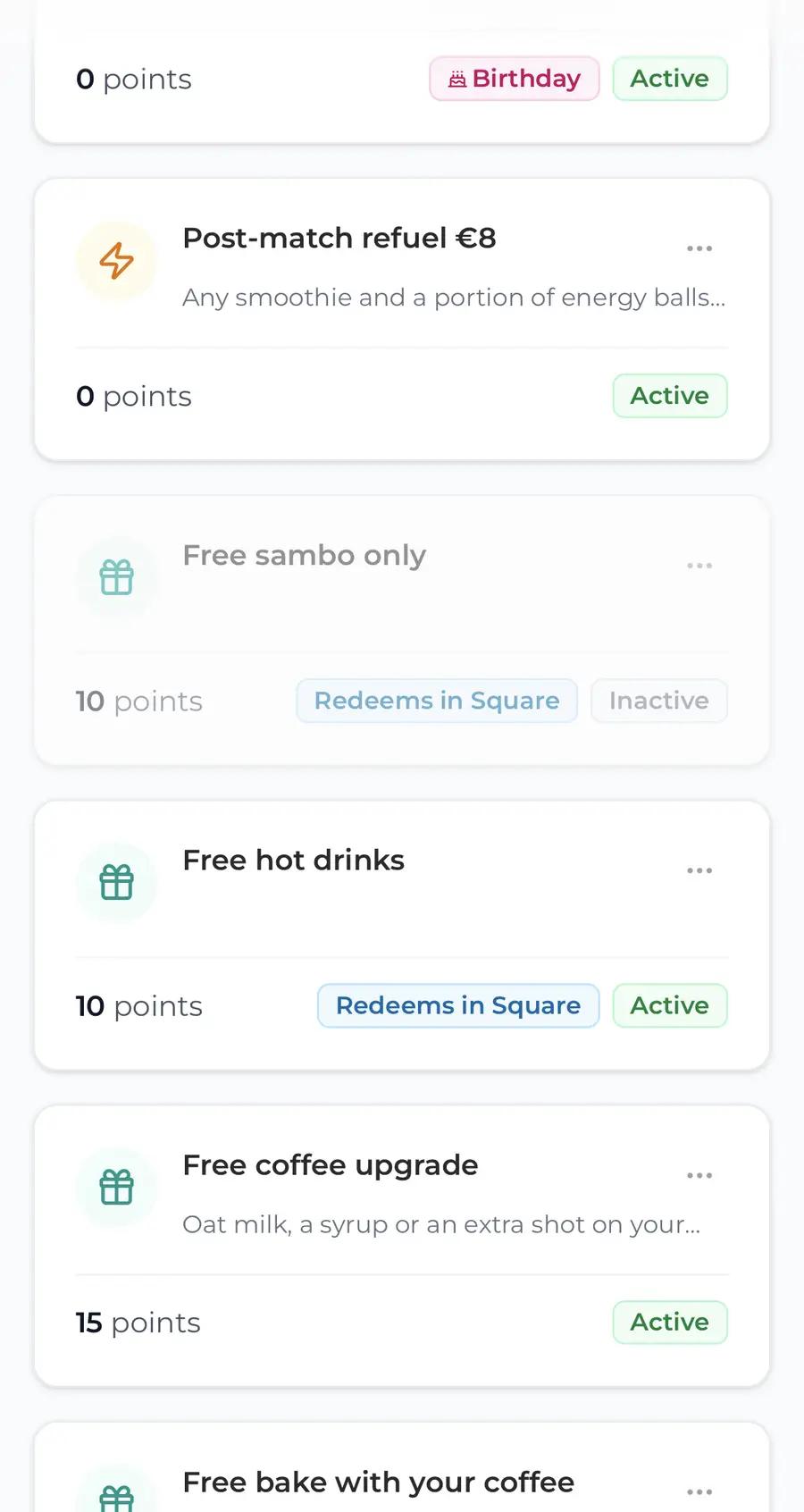
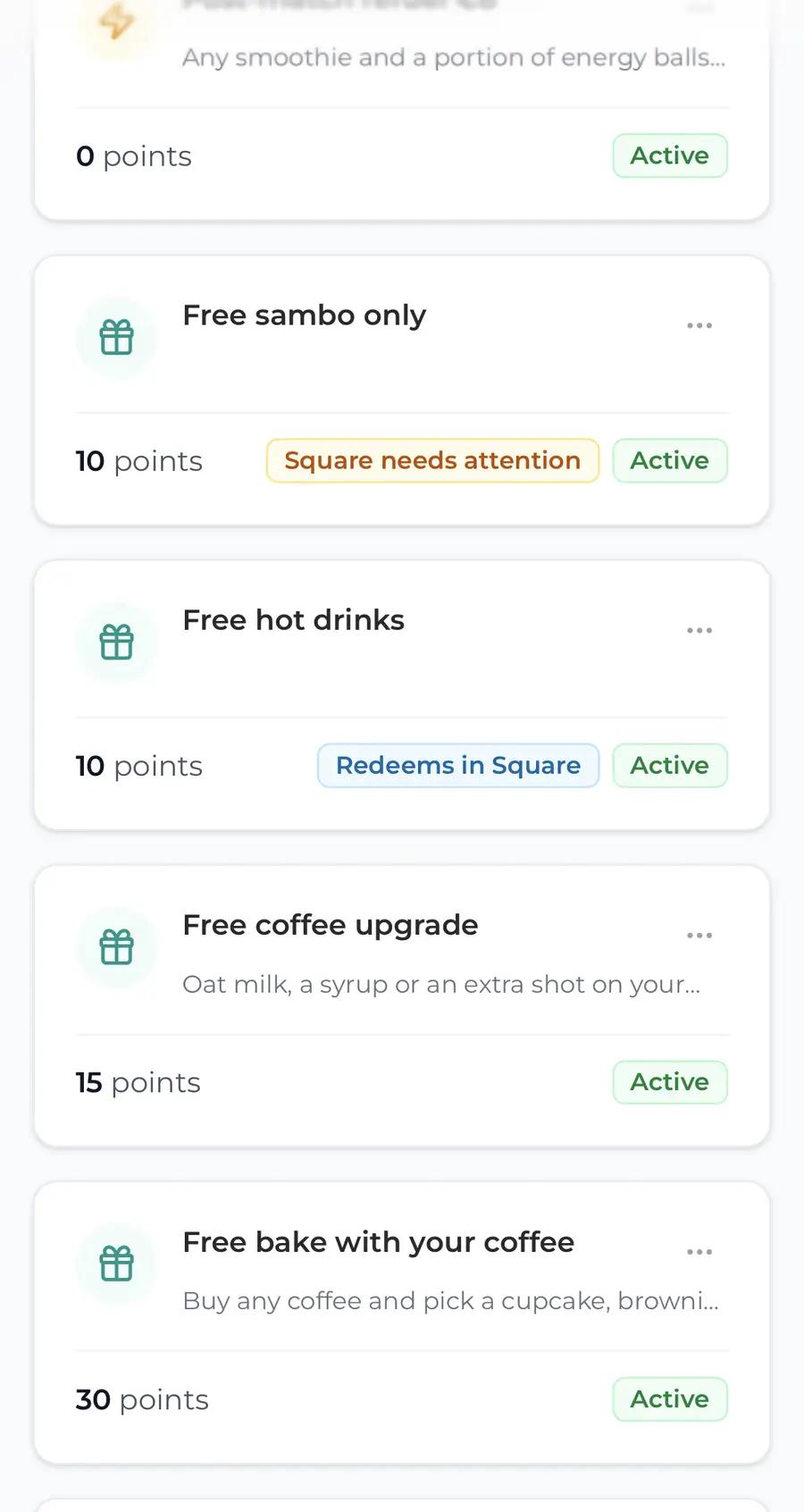
Joyal's Rewards page with two cards reading Redeems in Square, one badge marked
Joyal, thenRedeems in Square.
If a red line appears in the Redeem in Square box The reward is saved and still works on your Joyal scanner. Square just did not take the set-up this time. Do what the line says, which is usually to tap Update Reward again.

Check · In Square

See what Joyal set up for you

There is nothing to do in Square. These three taps show you what Joyal added, so you and your staff know what it is and leave it be.

Your screen may look different Our pictures show Square on an iPhone, in dark mode. On a tablet, or in light mode, things look a little different, but you are looking for the same names.
7

Open Discounts

In Square

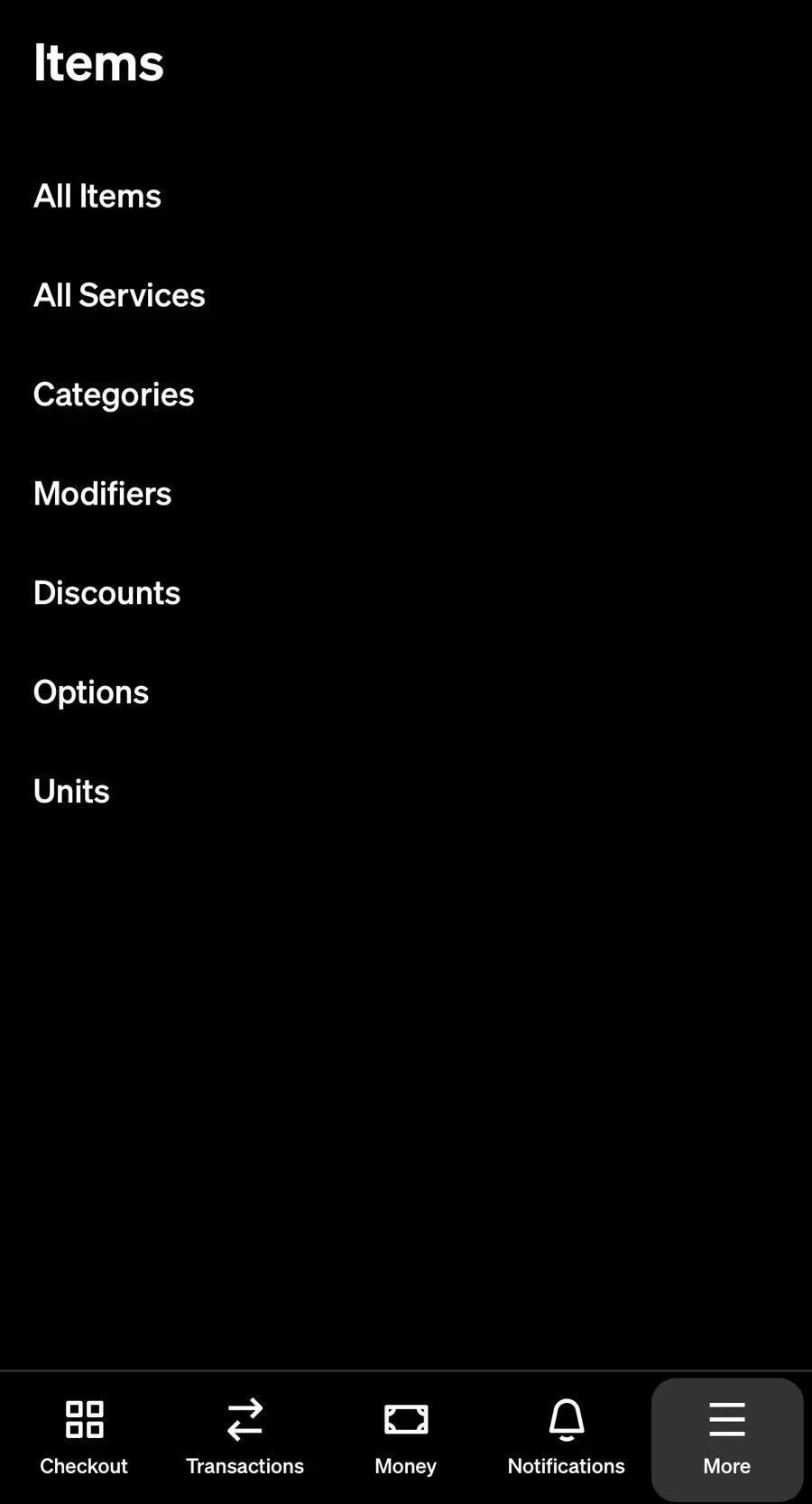
In the Square app, tap More at the bottom right, then Items, then Discounts.
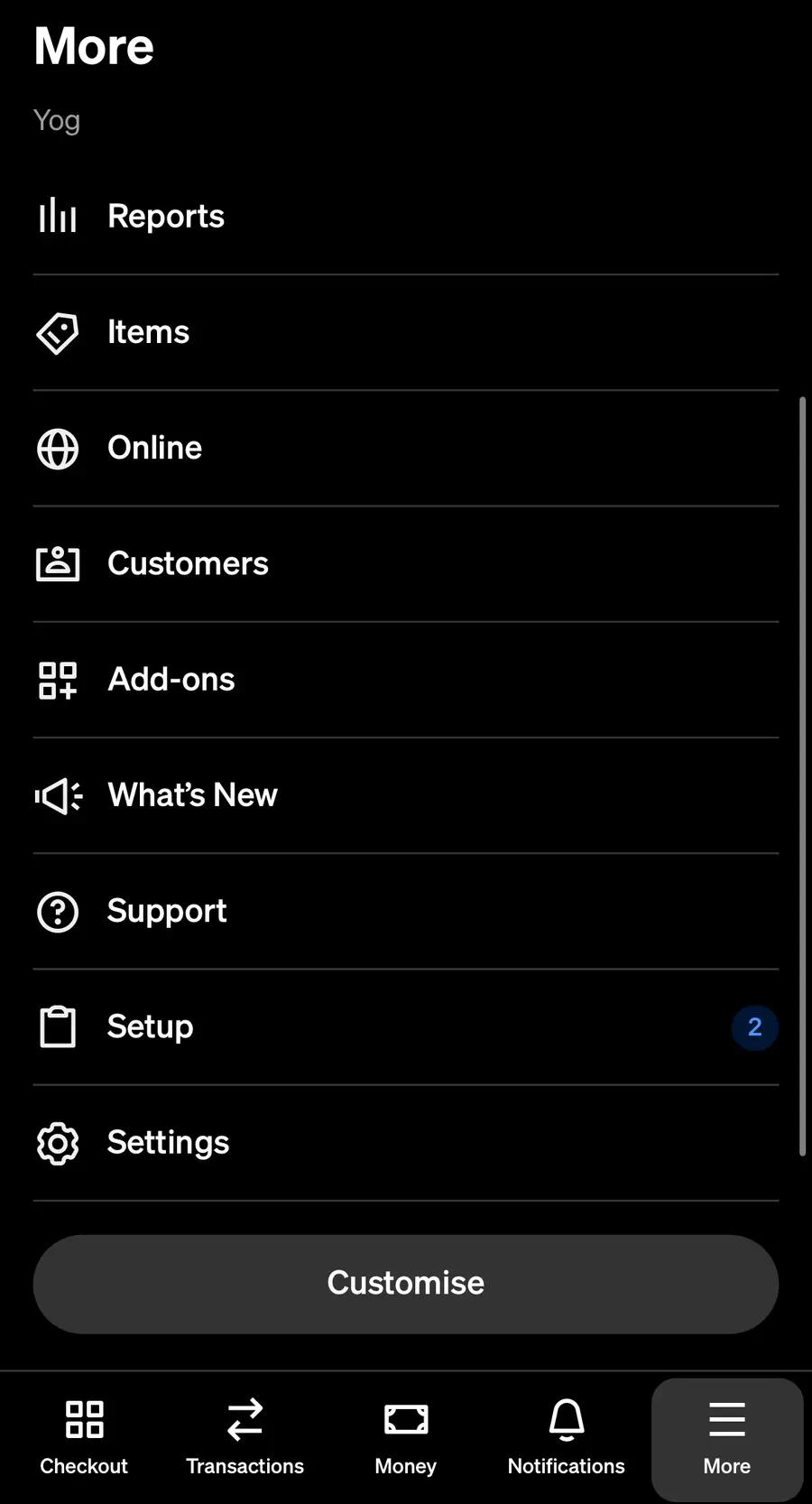
Square's More menu with Items marked, and the More tab marked
Square, firstMore, then Items.
Square's Items screen with Discounts marked
Square, thenDiscounts.
8

Find your reward

In Square

Each reward you set up has a discount here called Joyal reward: and the reward's name, at 100%. Joyal made it, and Joyal looks after it. You do not need to open it; tap the back arrow to leave.
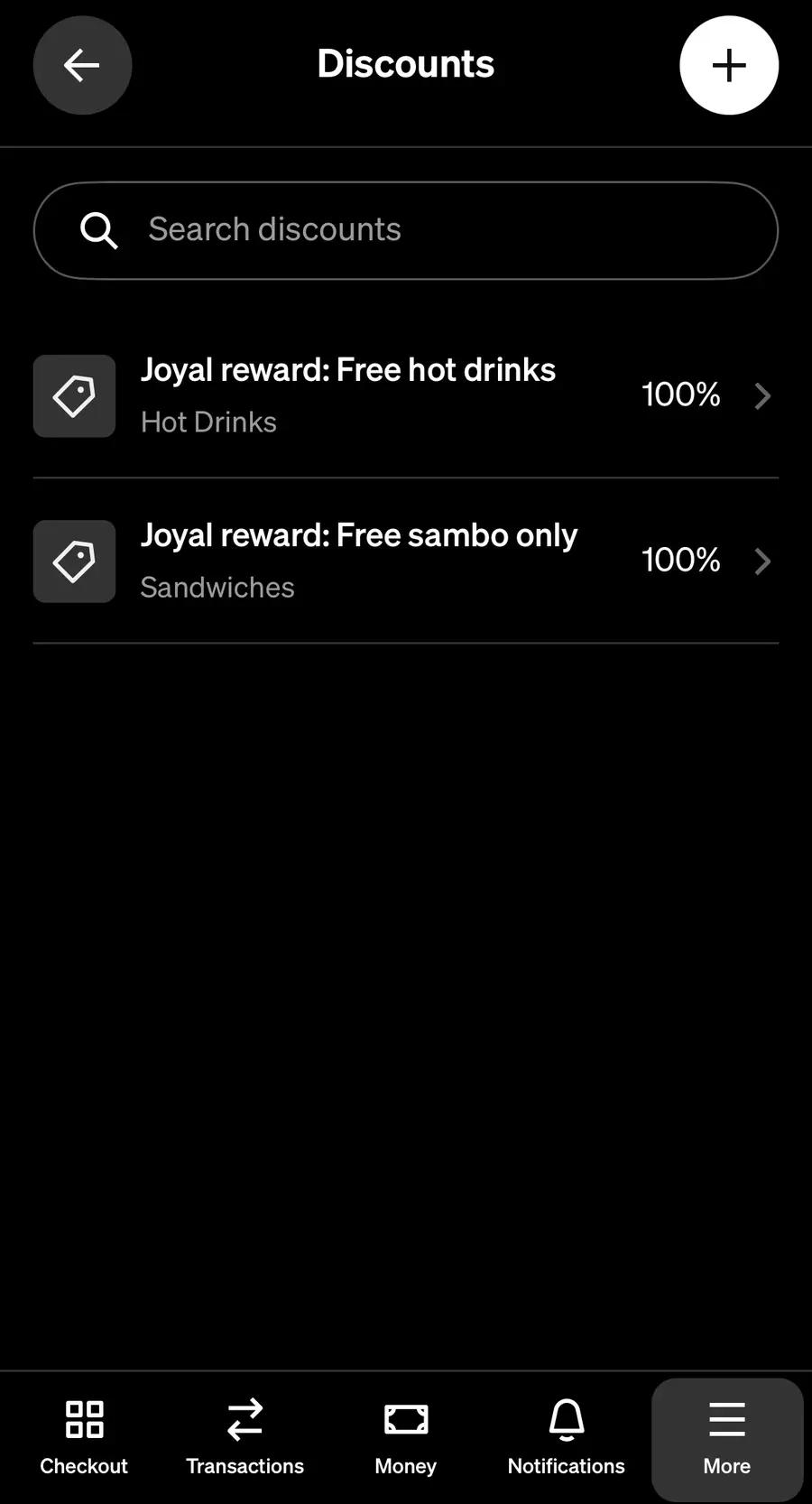
Square's Discounts list with two discounts named Joyal reward at 100%, marked
SquareOne discount for each reward.
The one thing to tell your staff Never add a Joyal reward discount from the till's discount list. It comes off by itself when the customer is added to the sale. Added by hand it is not limited to the reward's items, so it takes up to the limit off anything in the sale, and Joyal emails you each time that happens.
Deleted or changed one by accident? Joyal puts it back by itself, usually within a minute and always within the hour. Joyal also makes a customer group in Square with the same name, and moves customers in and out of it as they claim and use the reward. Leave that be too.

Test · In Joyal and in Square

Try it with a customer

Ten minutes with your test customer and their phone. You will see the claim, the item coming off at the till, and the record on both sides.

9

Claim the reward

In Joyal

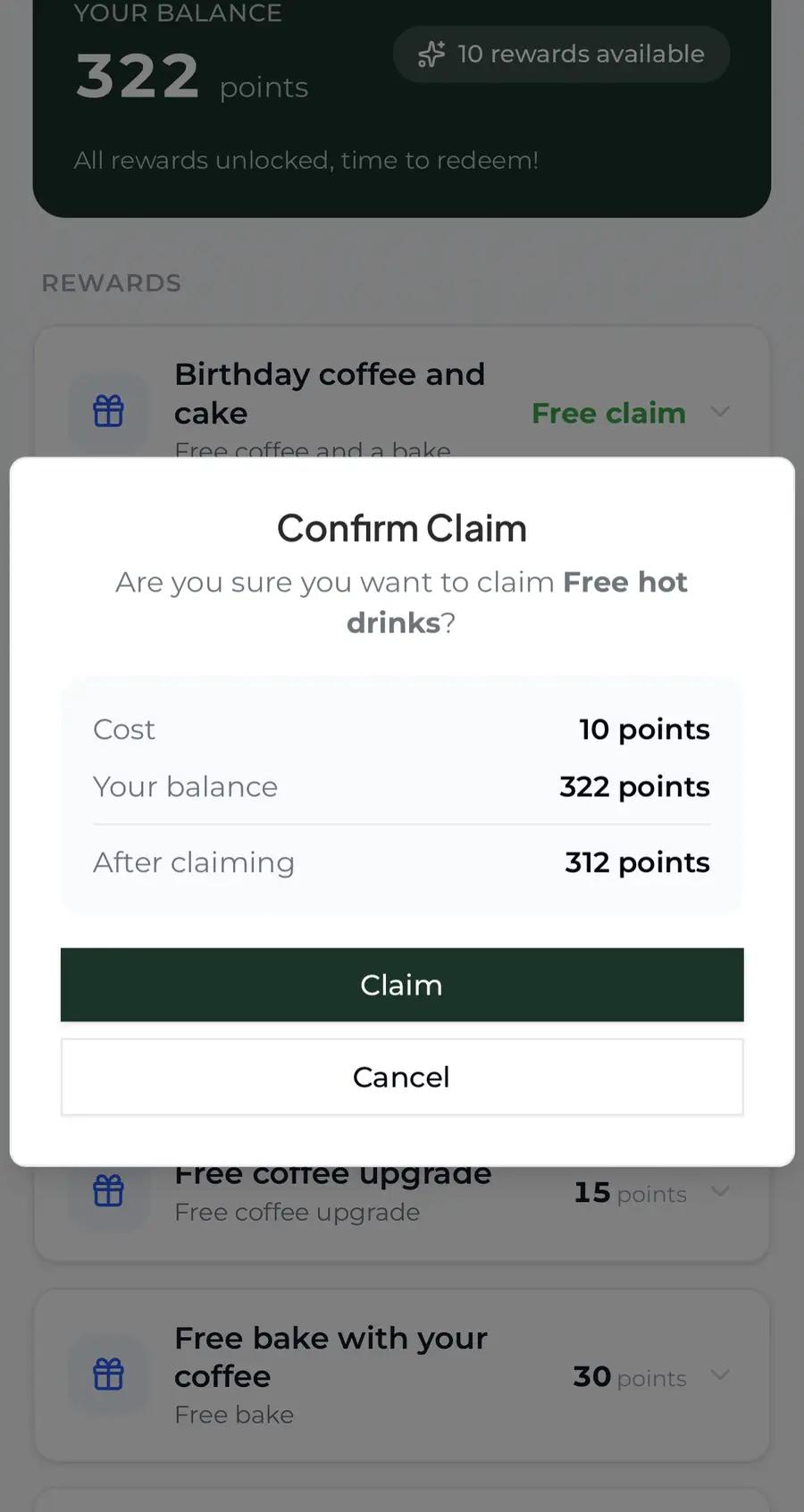
On your test customer's phone, open their Joyal app and tap Rewards at the bottom. Tap the reward to open it, then tap Claim. A box called Confirm Claim shows the cost in points and what their balance will be after. Tap Claim again. The points come off their balance now.
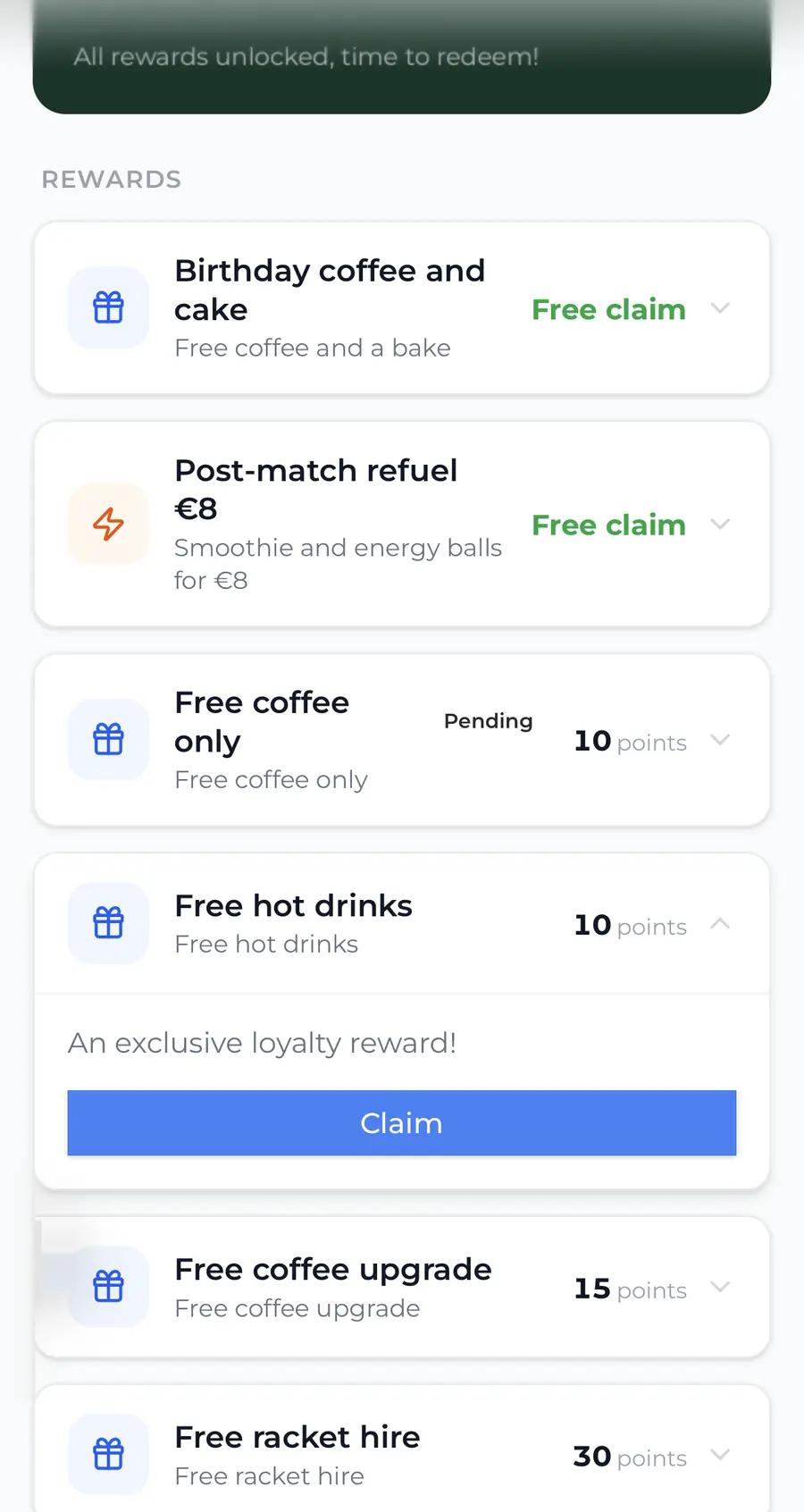
The customer's Rewards page with the Free hot drinks reward open and its Claim button marked
Customer, firstThe reward opened, then Claim.
The customer's Confirm Claim box showing the cost, their balance and the balance after claiming, with Claim marked
Customer, thenConfirm Claim, then Claim.
If there is no Claim button Your test customer does not have enough points yet. Scan them in Joyal and add some, or test with a member who does. Not your own profile: the owner is never in Square.
10

See it waiting

In Joyal

The reward now reads Pending, with a green line, Show your member number in store to redeem. The customer is ready. Bring their phone to the till.
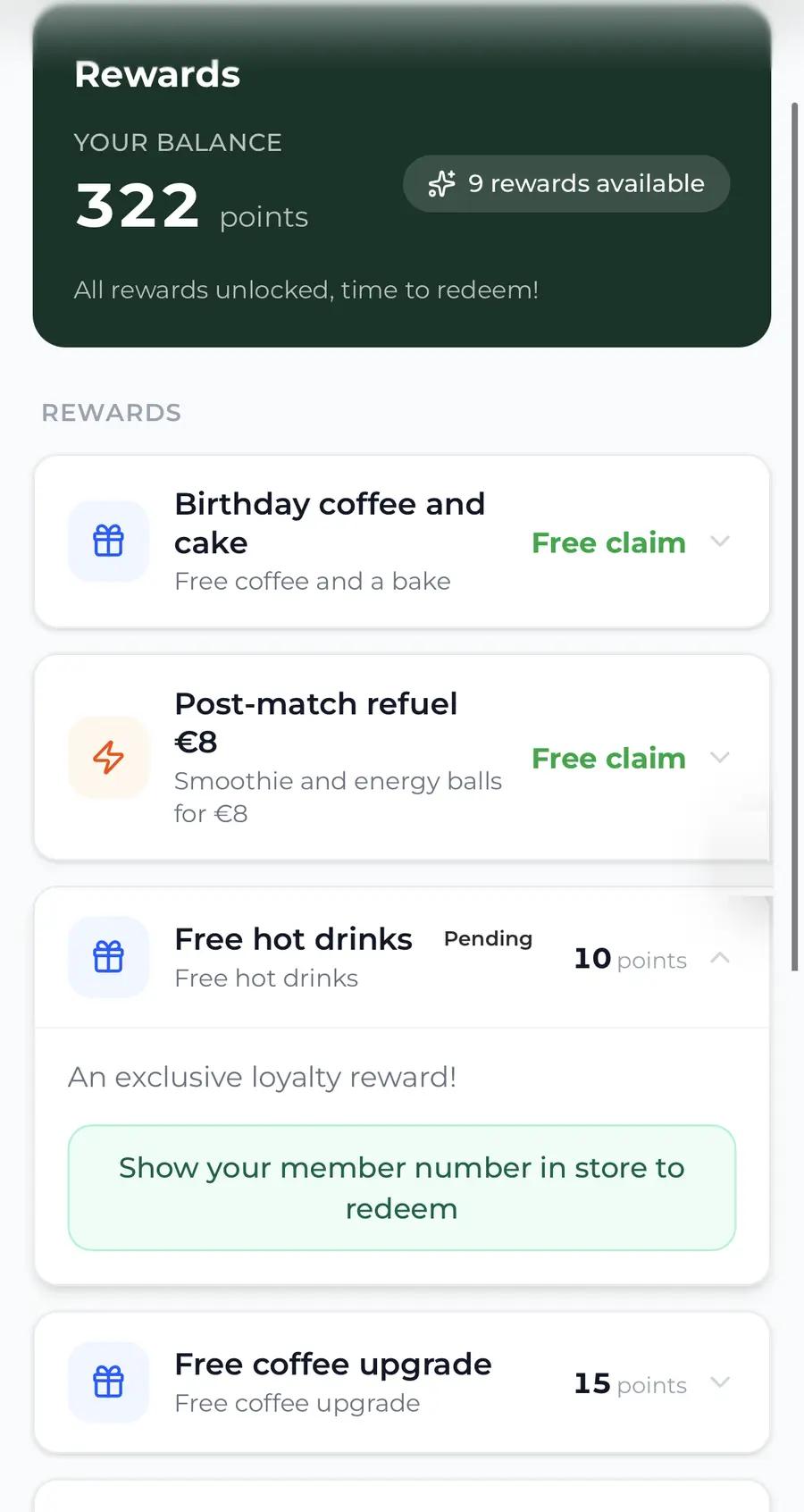
The customer's Rewards page with the claimed reward reading Pending and the green line Show your member number in store to redeem, both marked
CustomerPending, and the green line.
11

Ring it up and add the customer

In Square

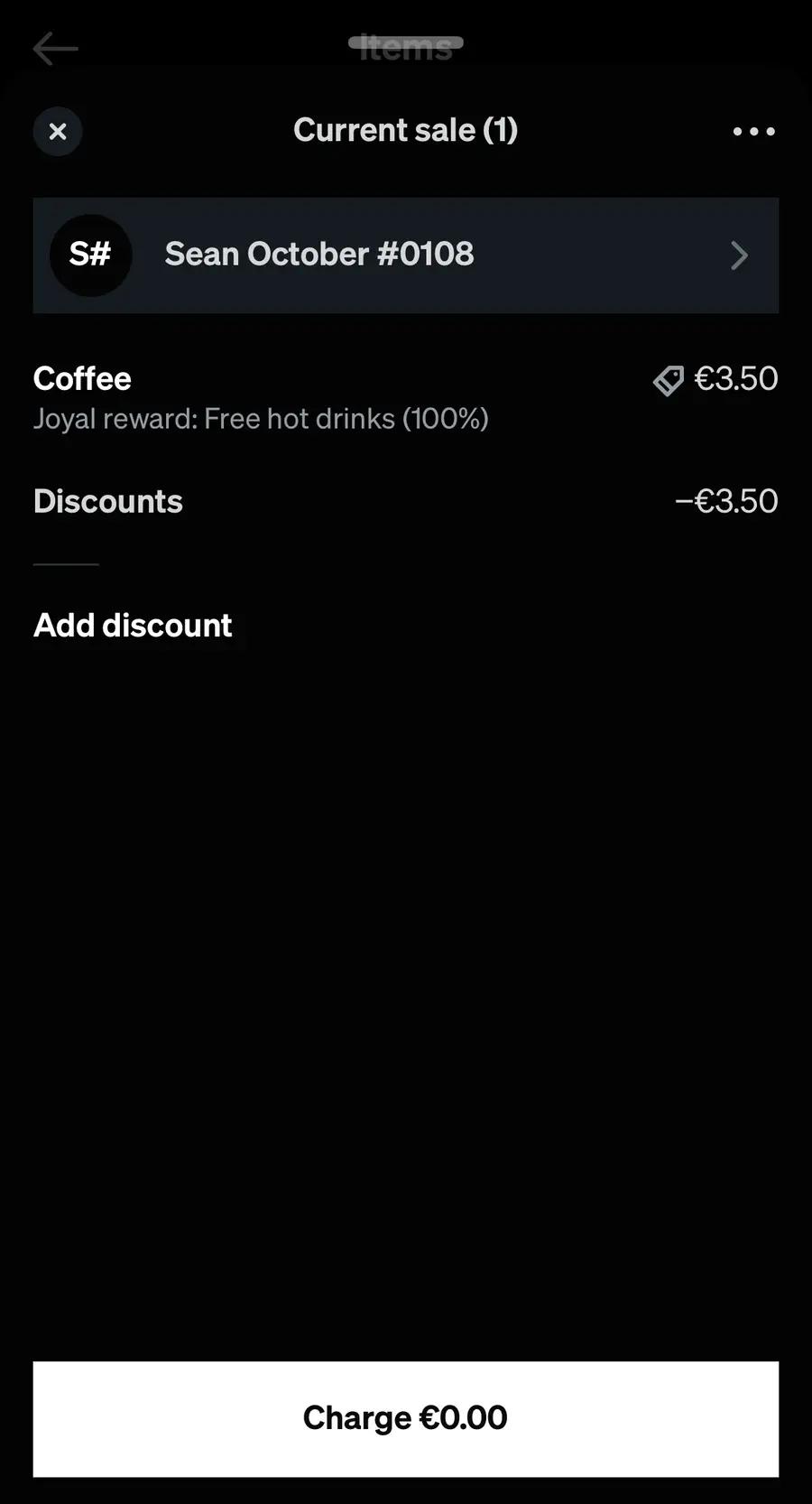
At the till, ring up the item as usual and open the sale. Tap Add a customer, then scan the QR code on their phone, or search their member number, exactly as you do for points (Connecting to Square, Task 4). The moment the customer is on the sale, the item gets a line under it, Joyal reward: and the reward's name, Discounts shows the amount off, and the total drops. Nobody tapped anything.
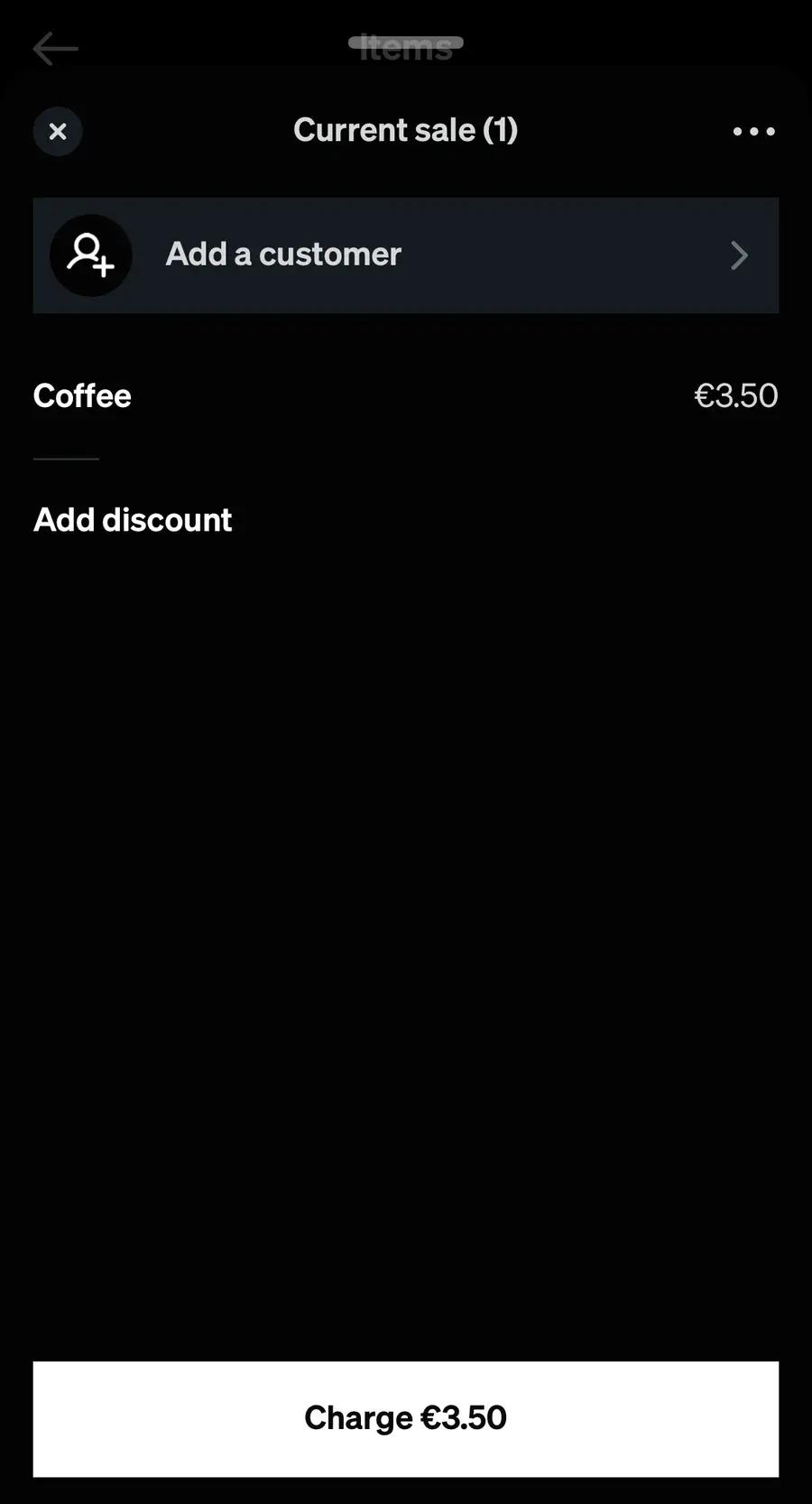
A Square sale with a Coffee rung up at full price, and Add a customer marked
Square, firstAdd a customer.
The same Square sale with the member added, the Coffee showing the line Joyal reward: Free hot drinks (100%) and Discounts minus 3.50 euro, both marked
Square, thenThe customer on the sale, and the reward under the item.
12

Charge

In Square

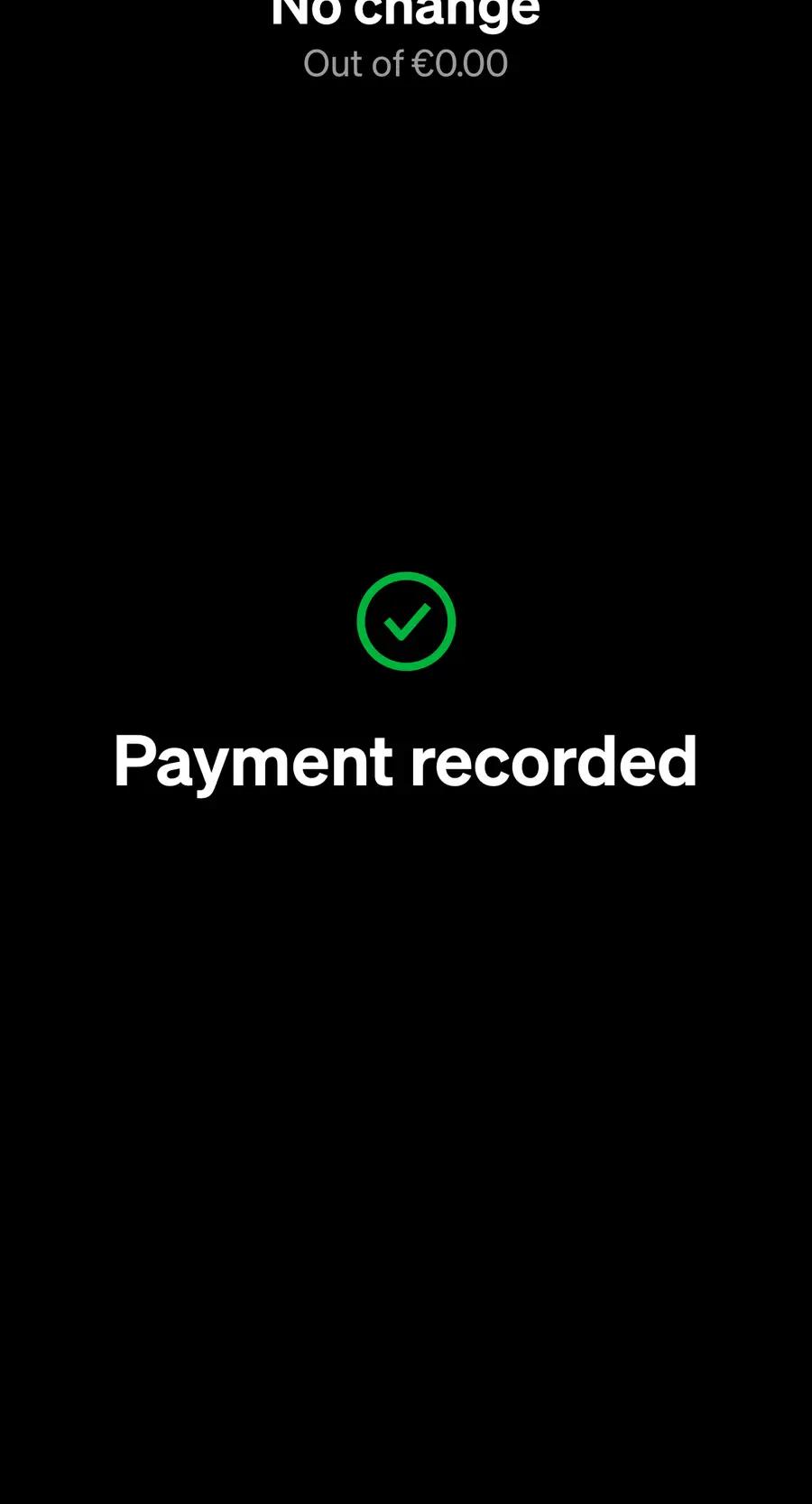
Tap Charge. If the reward covers the whole sale, Square shows €0.00 and greys out the card buttons: tap the blue Record €0.00 Payment, and Square shows Payment recorded. That recorded payment is what tells Joyal the reward has been used, so always finish the sale this way. If there is still something to pay, take the payment as usual.
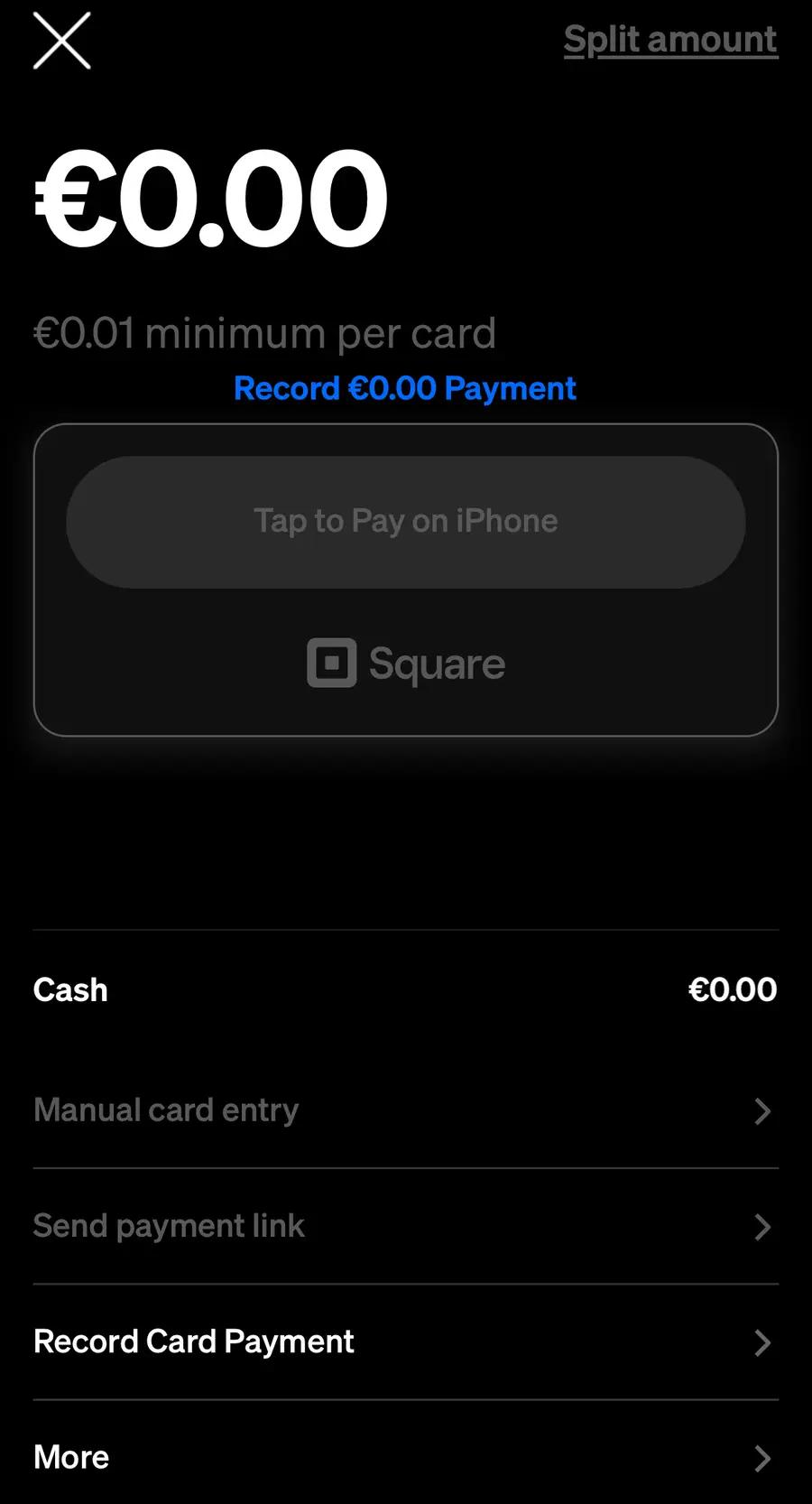
Square's payment screen for 0.00 euro with the blue Record 0.00 euro Payment link marked
Square, firstRecord €0.00 Payment.
Square's Payment recorded screen with a green tick, marked
Square, thenPayment recorded.
13

On the customer's phone

In Joyal

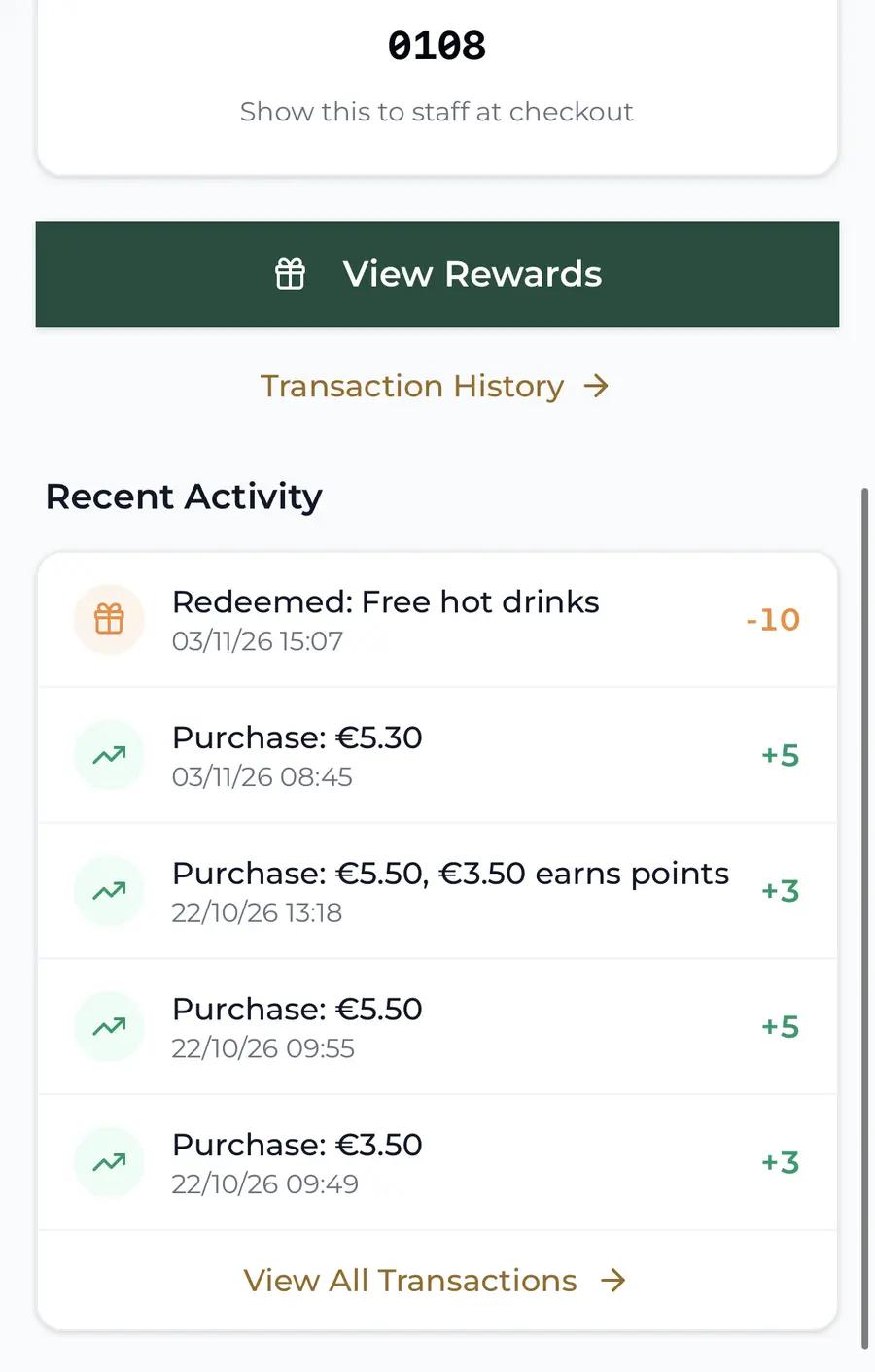
Within a few seconds their phone gets a message, the reward's name followed by redeemed!, with their new balance. On their home screen, under Recent Activity, the top line reads Redeemed: and the reward's name. Your customers never see the word Square.
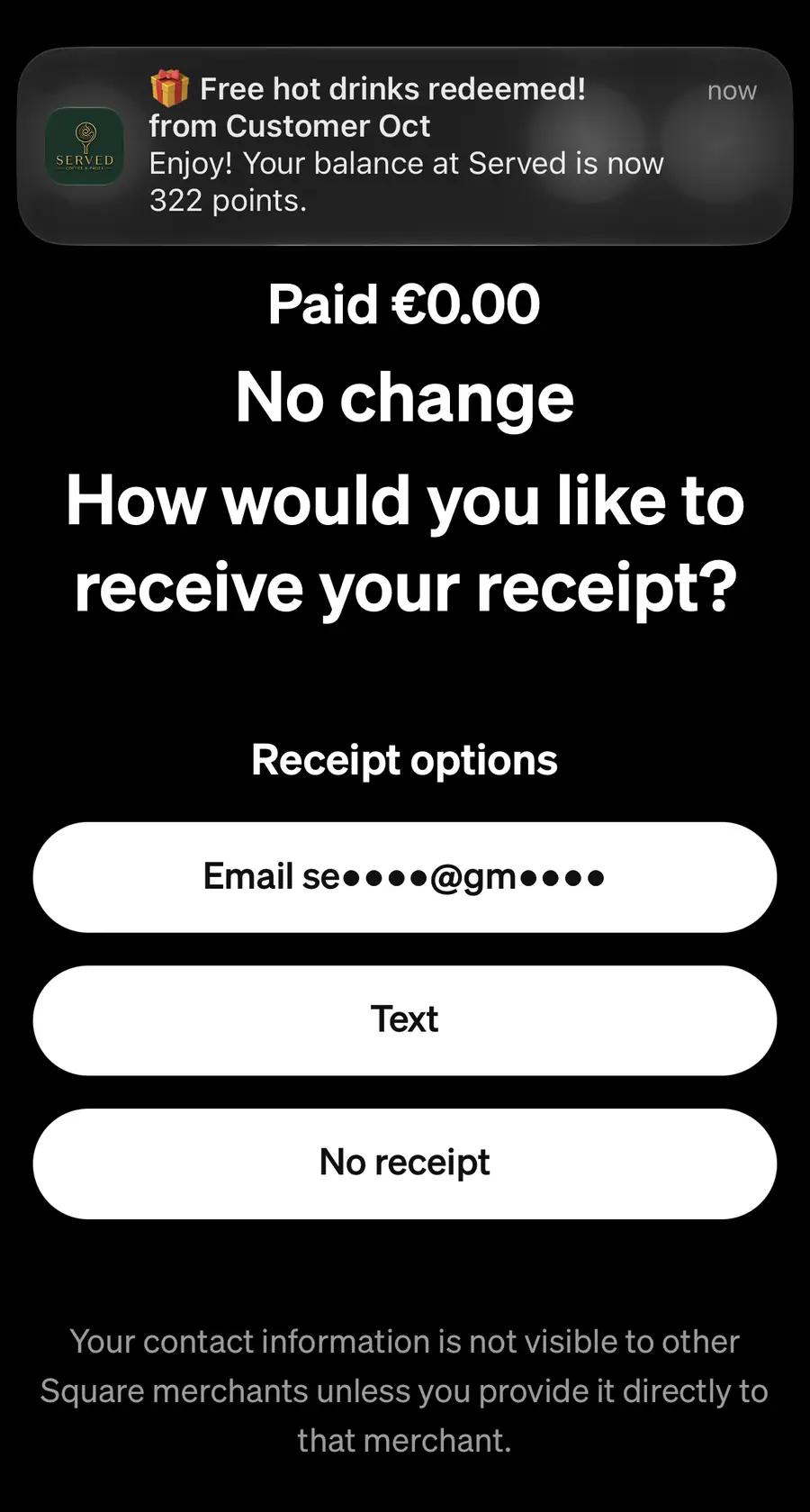
Square's Paid 0.00 euro screen with the customer's notification Free hot drinks redeemed! showing over it, marked
Customer, firstTheir message, within seconds.
The customer's home screen with Recent Activity and the line Redeemed: Free hot drinks, marked
Customer, thenRedeemed, in Recent Activity.
14

On your History page

In Joyal

In your Joyal app, open the menu and tap History. The redemption is at the top of the list as Redeemed in Square: and the reward's name, with Square as the staff member.
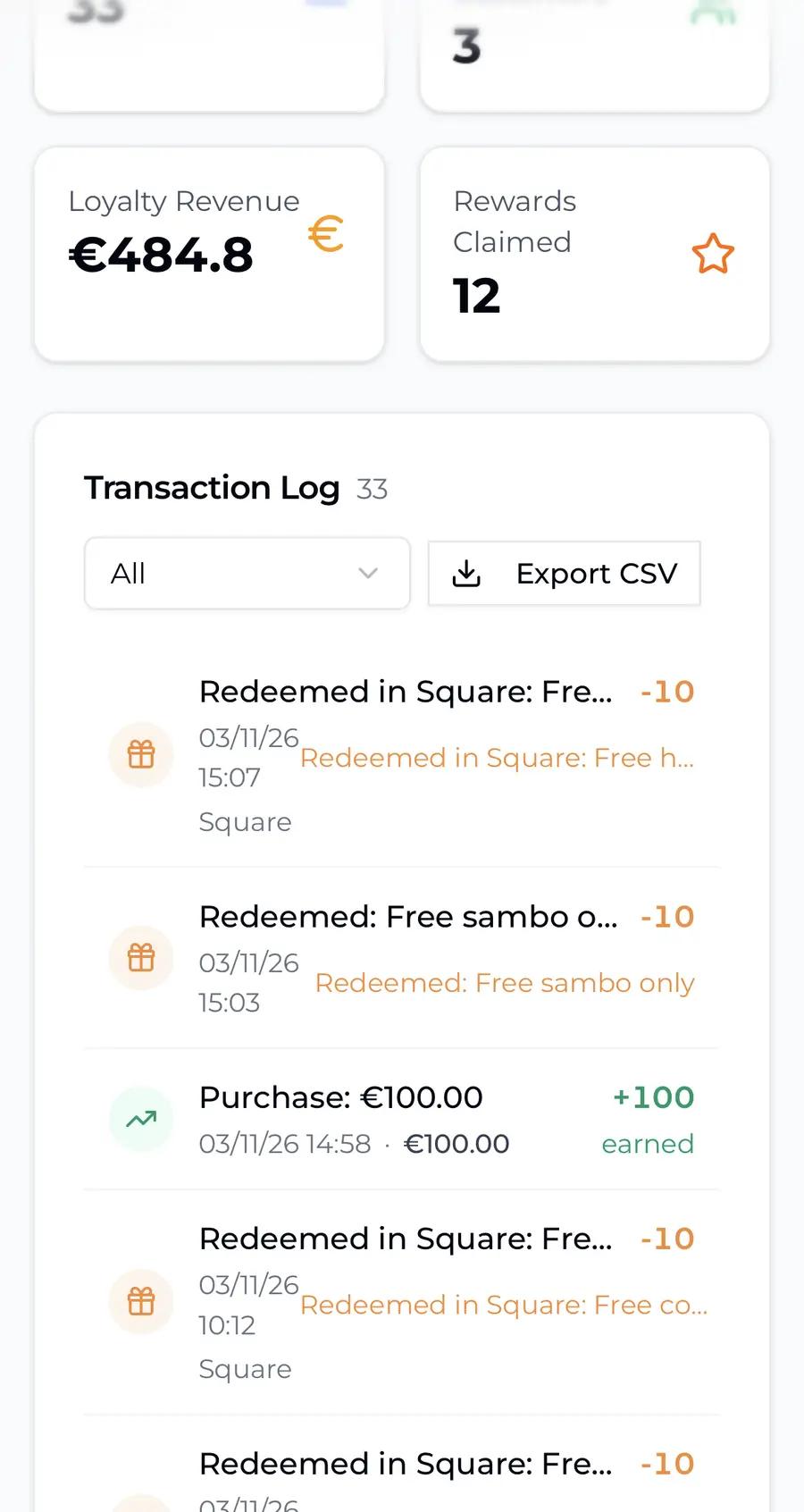
The owner's History page with the Transaction Log and the line Redeemed in Square: Free hot drinks, marked
JoyalRedeemed in Square, with Square as the staff member.
15

On your scanner

In Joyal

Have your test customer claim the reward once more, then scan them in your Joyal scanner. Under Rewards, the claim is tagged Redeems at the Square till, and Redeem is still there. Use Redeem when the till cannot help, such as a sale rung up without the customer: it hands the reward over, and the till will not take it off again. Tap Find Different Customer to finish. You are all set.
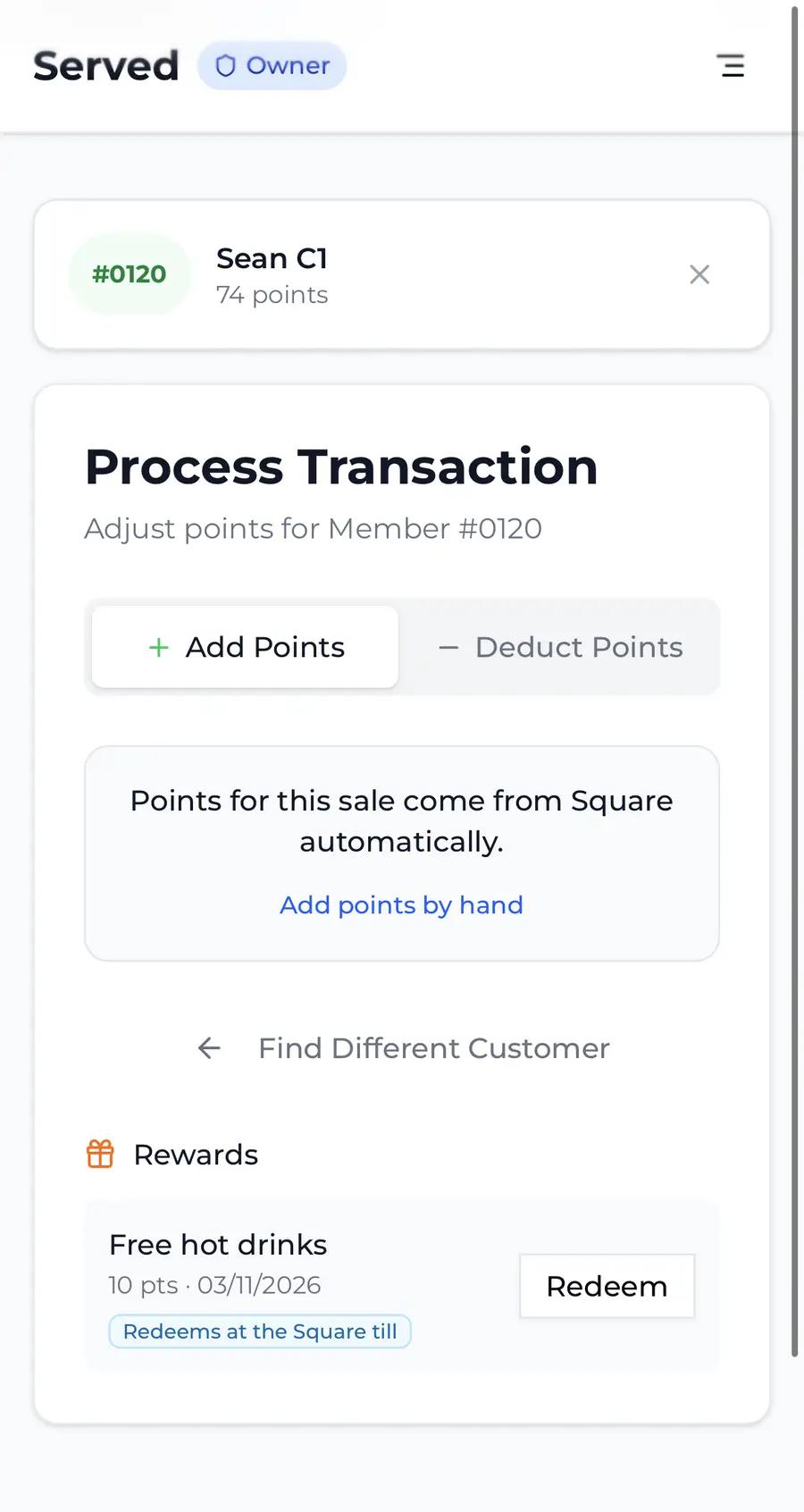
Joyal's scanner for a member with a claim, the tag Redeems at the Square till and the Redeem button both marked
JoyalThe tag, and Redeem for when you need it.

Notes

Good to know

What comes off, and what does not Only the reward's items, up to the limit you set, and only when the customer is on the sale. Everything else in the sale is paid for and earns points as usual. An amount typed on the keypad never comes off. If nobody is added to the sale, nothing comes off and the claim waits for their next visit.
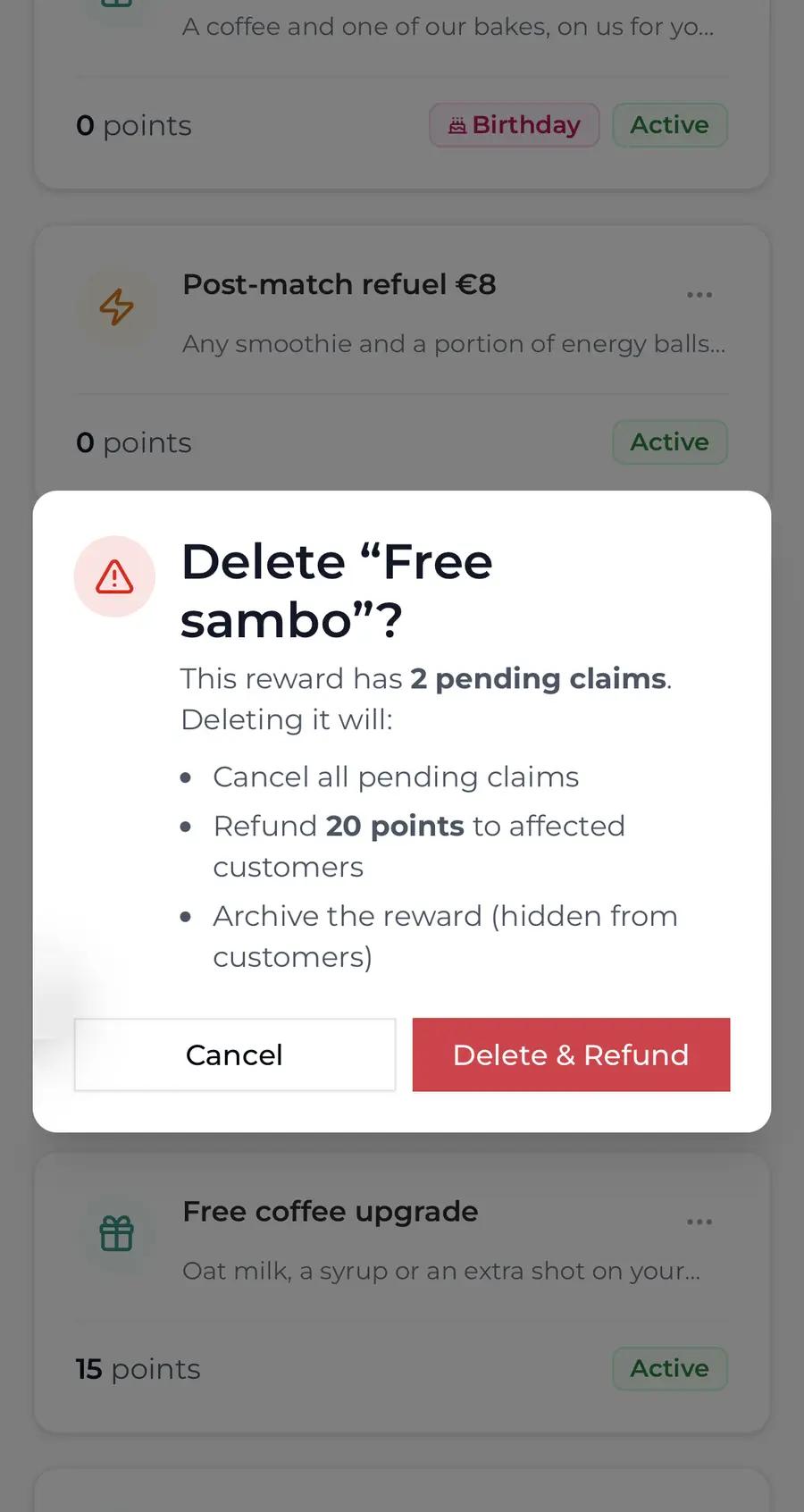
Switching a reward off and on, and deleting it Deactivate, Activate and Delete are all on the reward's three-dot menu. Deactivate takes the discount out of Square straight away; claims already made wait, and come off again as soon as you Activate it. The badge stays on the card, so you can see it is still set up for the till. Delete, when customers have claims waiting, tells you how many, cancels them and gives the points back, as it always has; the discount comes out of Square first. A reward that has been used before is archived rather than deleted, so your records stay.
Joyal's Rewards page with a deactivated reward reading Inactive and keeping its Redeems in Square badge, Inactive marked
DeactivatedInactive, and still set up for the till.
Joyal's Delete box for a reward with 2 pending claims, listing the refund, with Delete and Refund marked
DeletingWhat a delete does, before you confirm it.
Renaming a reward Rename it in Joyal and the discount in Square takes the new name within seconds. Nothing to do in Square.
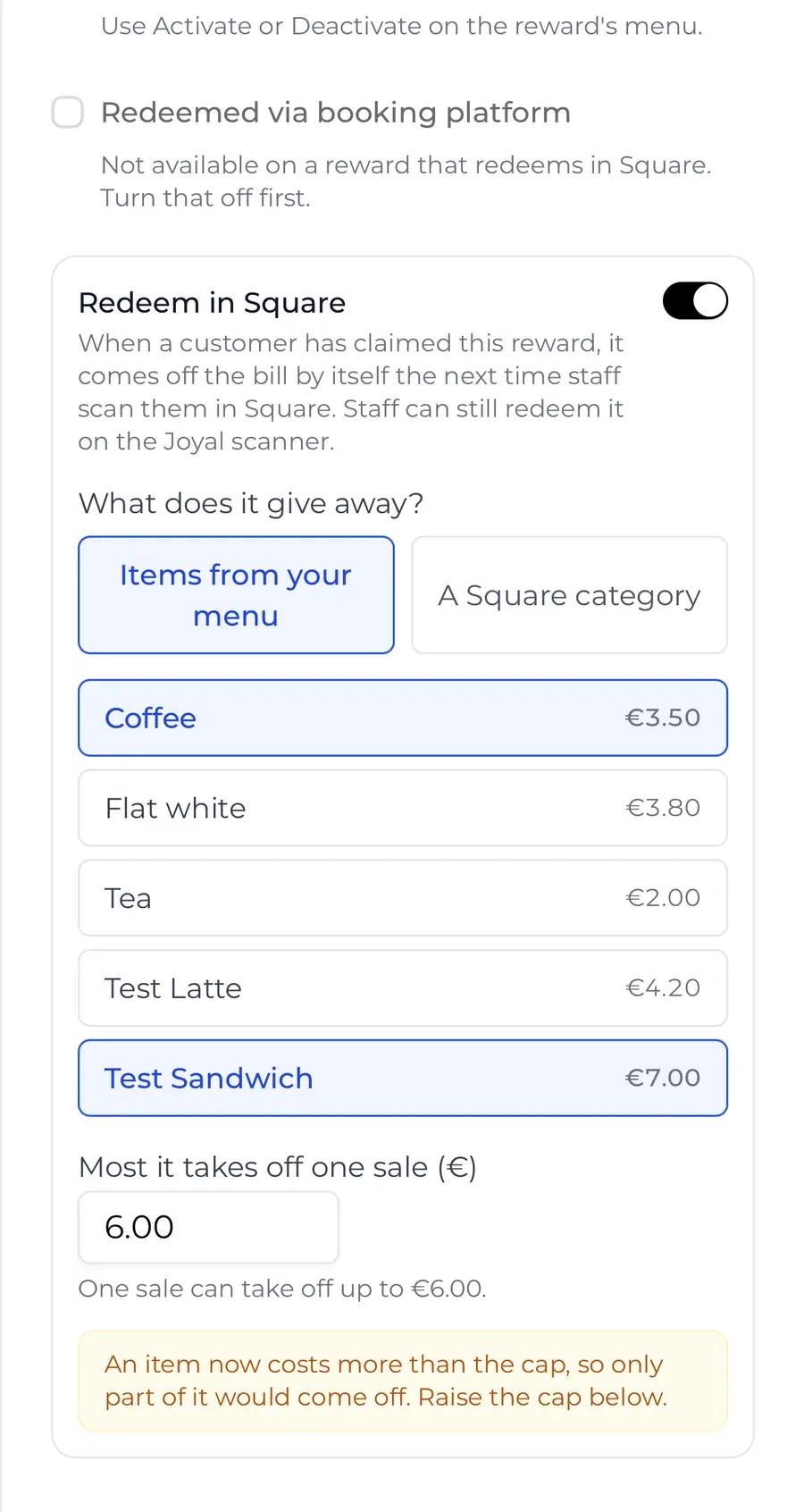
If a card says Square needs attention Open the reward (three dots, Edit) and scroll to the Redeem in Square box: an amber line says what is wrong and what to do. Most often a price in Square has gone up past the limit, so only part of the item would come off: raise the figure and tap Update Reward. Until it is sorted, the reward still works on your Joyal scanner.
Joyal's Rewards page with a card showing the amber badge Square needs attention, marked
Joyal, firstThe amber badge on the card.
The Redeem in Square box with the amber line An item now costs more than the cap, so only part of it would come off. Raise the cap below, marked
Joyal, thenWhat to do, in the box.
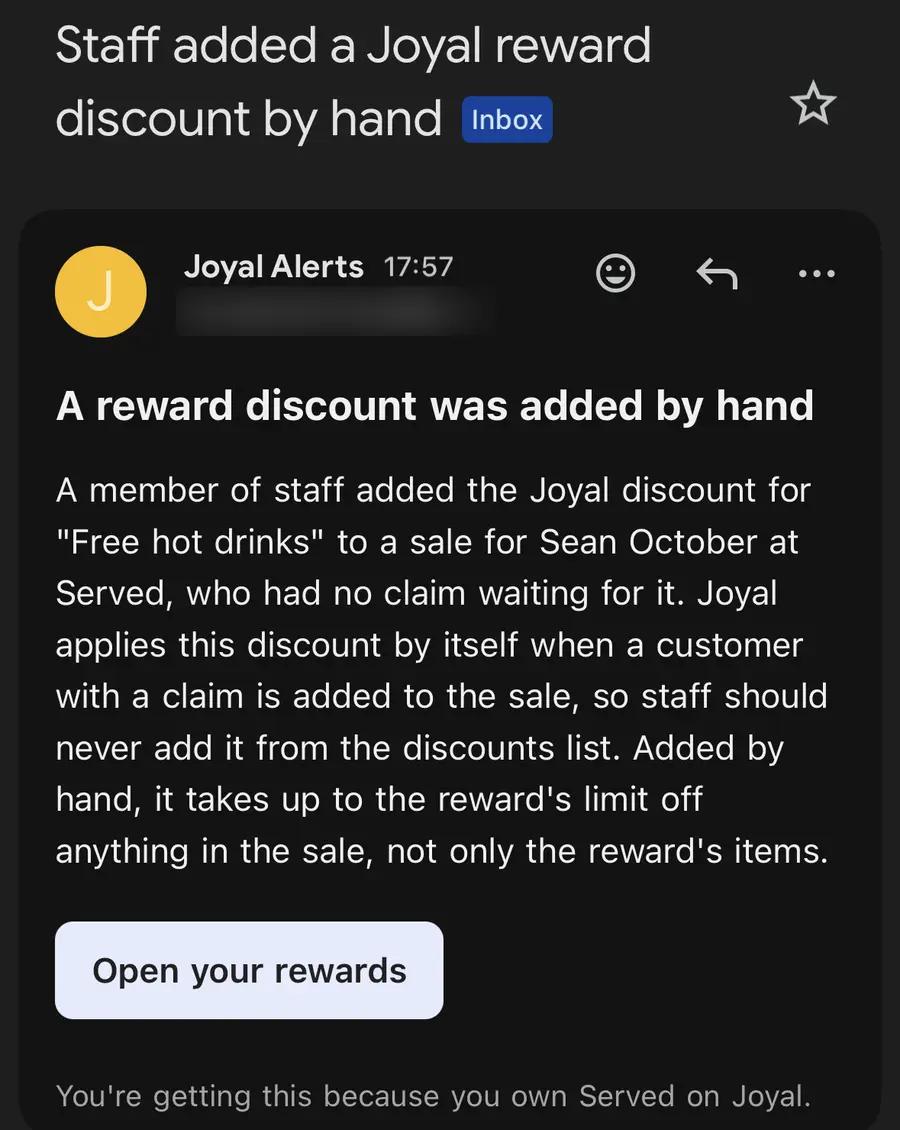
The email about a discount added by hand If a member of staff adds a Joyal reward discount from the till's list, you get an email, Staff added a Joyal reward discount by hand, naming the reward and the customer. The sale stays as it was rung up; the email is so you can have a word. It stays quiet only when staff redeemed that reward on the Joyal scanner and then added the discount at the till within the hour, which Joyal treats as one redemption.
The email Staff added a Joyal reward discount by hand, from Joyal Alerts, with its explanation and the Open your rewards button
EmailWhat arrives, within a minute of the sale.
Disconnecting Square Your rewards go back to being redeemed on the Joyal scanner, the badge comes off their cards, and claims already made stay, with Redeem on the scanner. If you connect Square again, switch Redeem in Square on again for each reward.
Other reward types For now, Free Item rewards are the ones that come off at the till. Your other rewards are redeemed on the Joyal scanner, as they are today.

Joyal · Rewards at the Square till. Stuck on a step? Send us its number and a photo of your screen, and we will help from there.