Joyal

How to

Choose what earns points

Once this is set up, members earn points only on the items you choose, such as your coffees. Put them in a Loyalty category in Square, choose it in Joyal, and Joyal does the rest.

A red box marks the thing to tap. Tap any picture to see it full size. Everything happens on your phone, in Square and in Joyal, and every step says which one.

Task 1 of 2 · In Square

Make a Loyalty category

First, make a category in Square called Loyalty and put the items that should earn points in it. You only do this once.

Your screen may look different Our pictures show Square on an iPhone, in dark mode. On an iPad or a Square till, or in light mode, things look a little different, but you are looking for the same names. Stuck? Let us know and we will help.
1

Open Categories

In Square

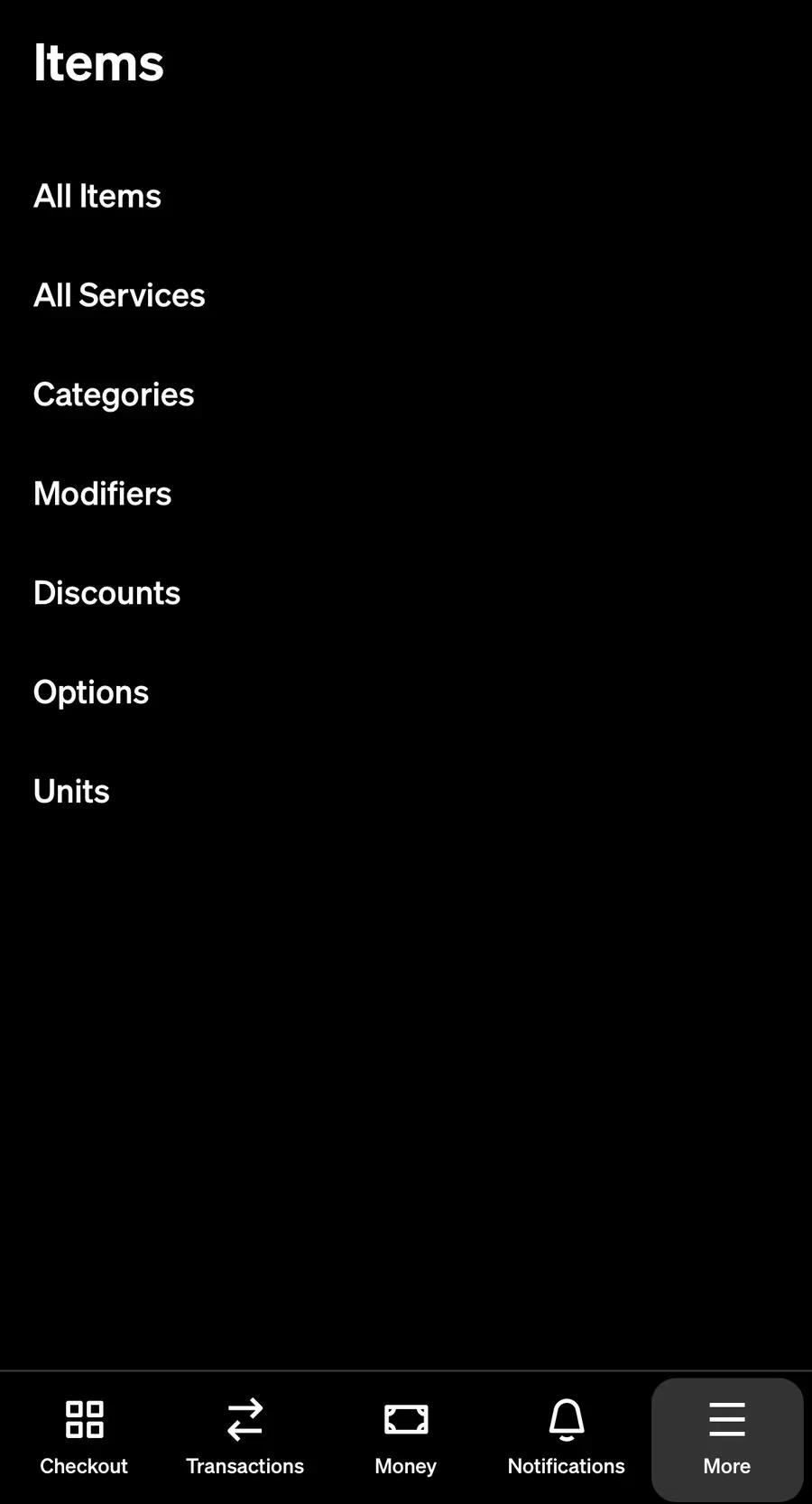
Tap More at the bottom right, then Items, then Categories.
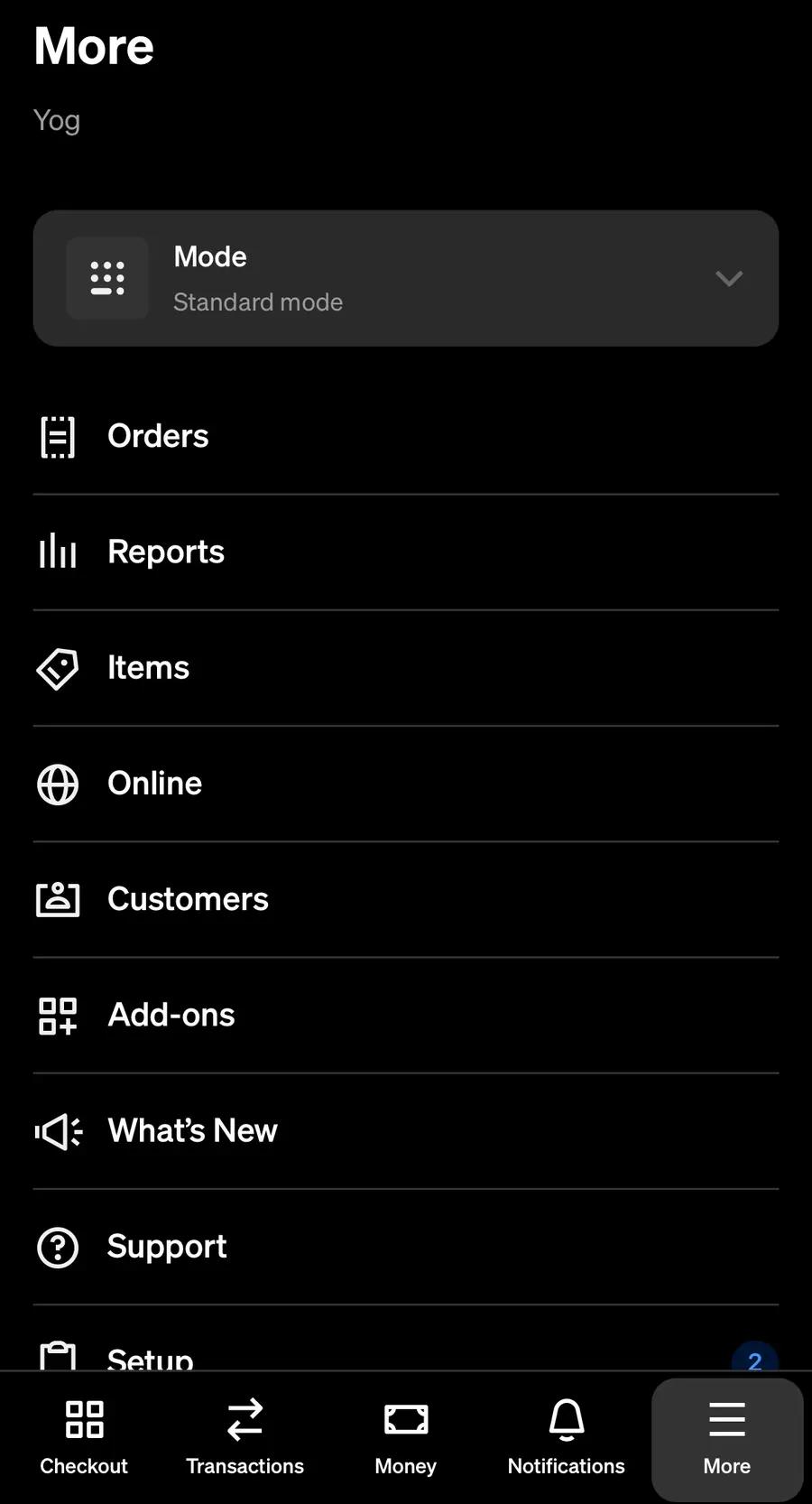
Square's More menu with Items and the More tab marked
Square, firstMore, then Items.
Square's Items menu with Categories marked
Square, thenCategories.
2

Make a category called Loyalty

In Square

Tap + at the top right. Type Loyalty as the Category name. Leave Parent category on None and everything else as it is, then tap Save.
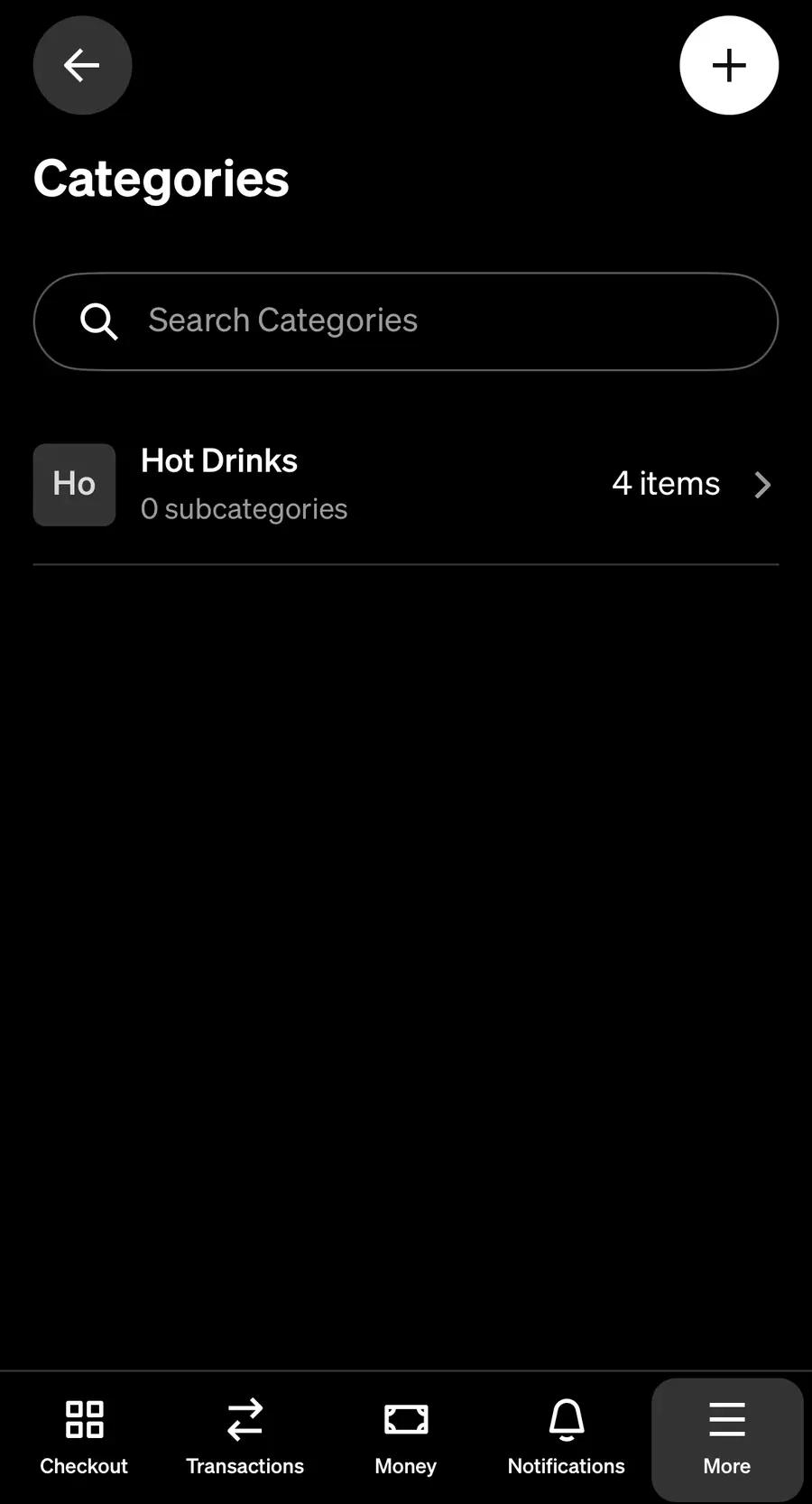
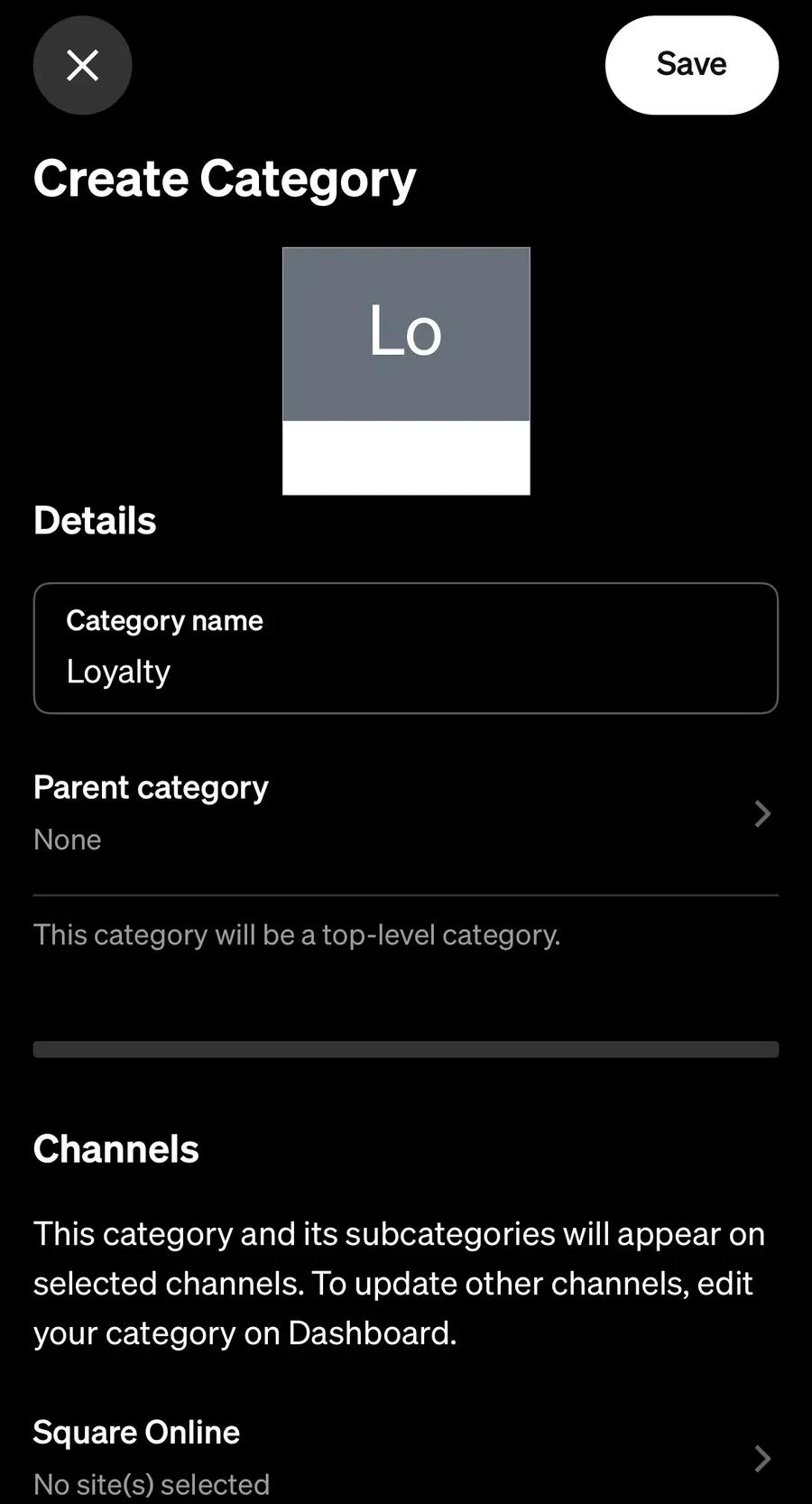
Square's Categories list with the plus button at the top right marked
Square, firstThe + at the top right.
Square's Create Category screen with Loyalty typed as the Category name, Parent category on None, and Save, with the name and Save marked
Square, thenLoyalty, then Save.
3

Open Loyalty

In Square

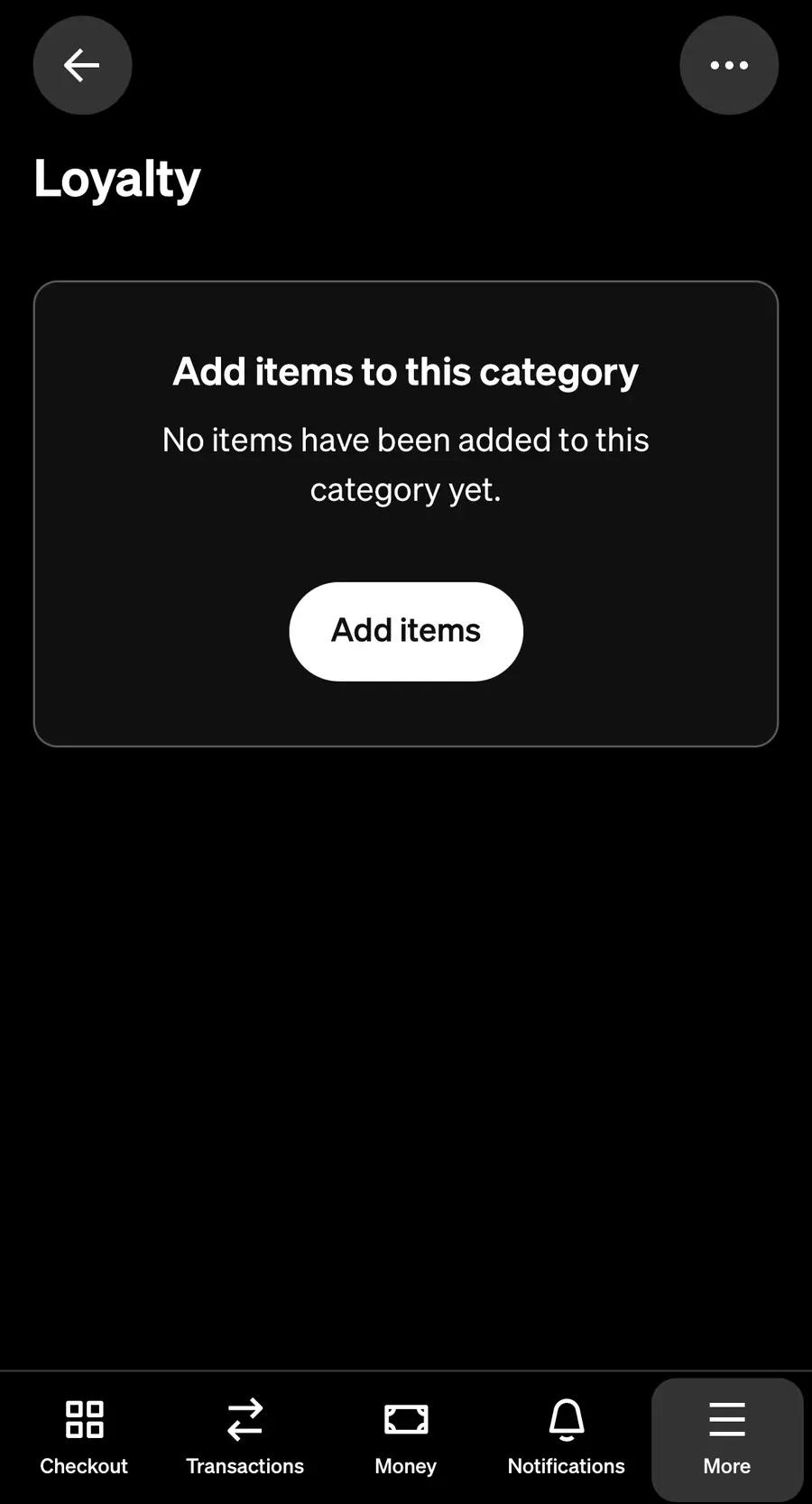
You are back on Categories, with Loyalty in the list. Tap Loyalty, then Add items.
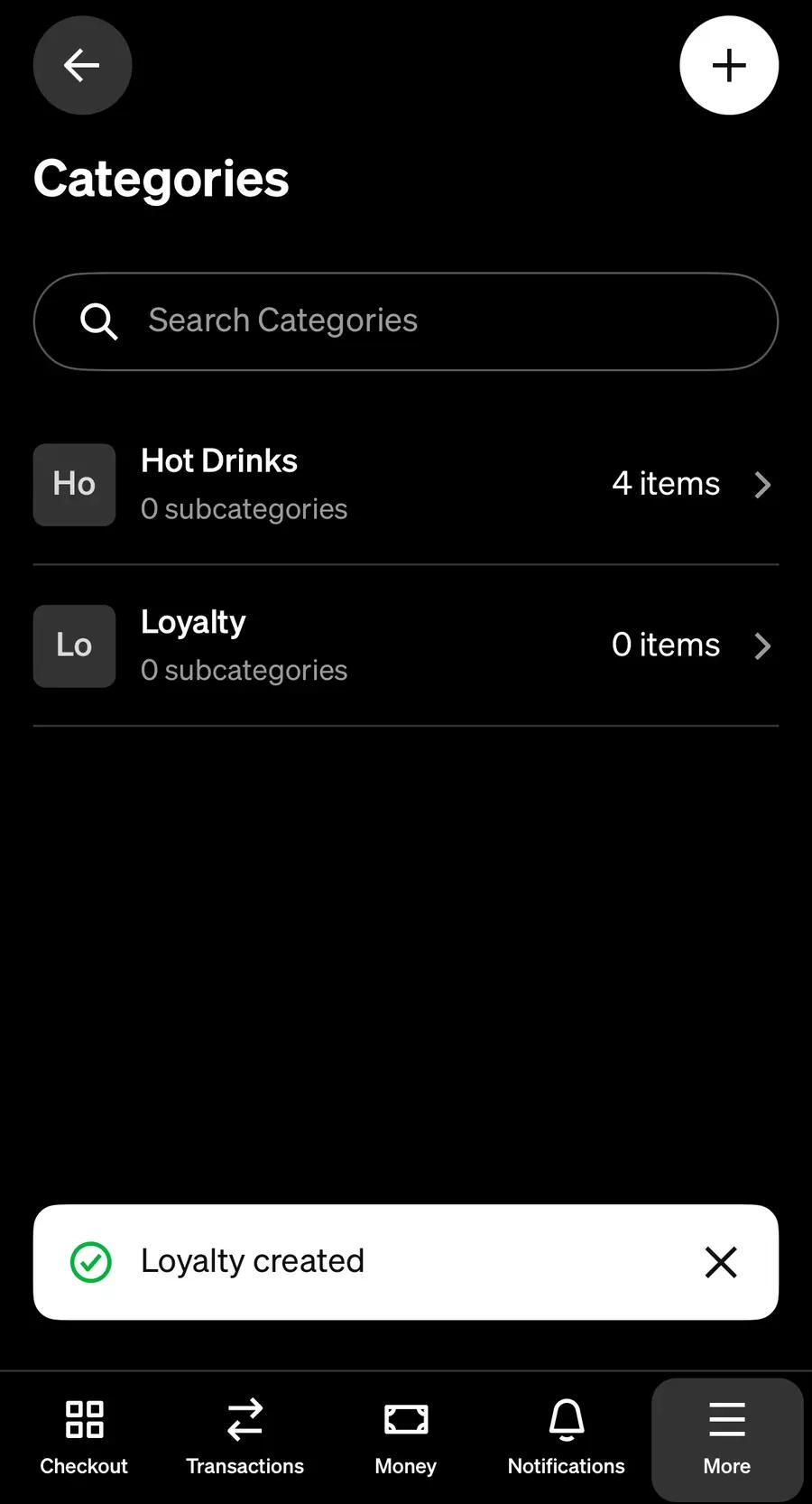
Square's Categories list with the new Loyalty category marked, and the message Loyalty created
Square, firstLoyalty.
The empty Loyalty category with the Add items button marked
Square, thenAdd items.
4

Tick the items that should earn

In Square

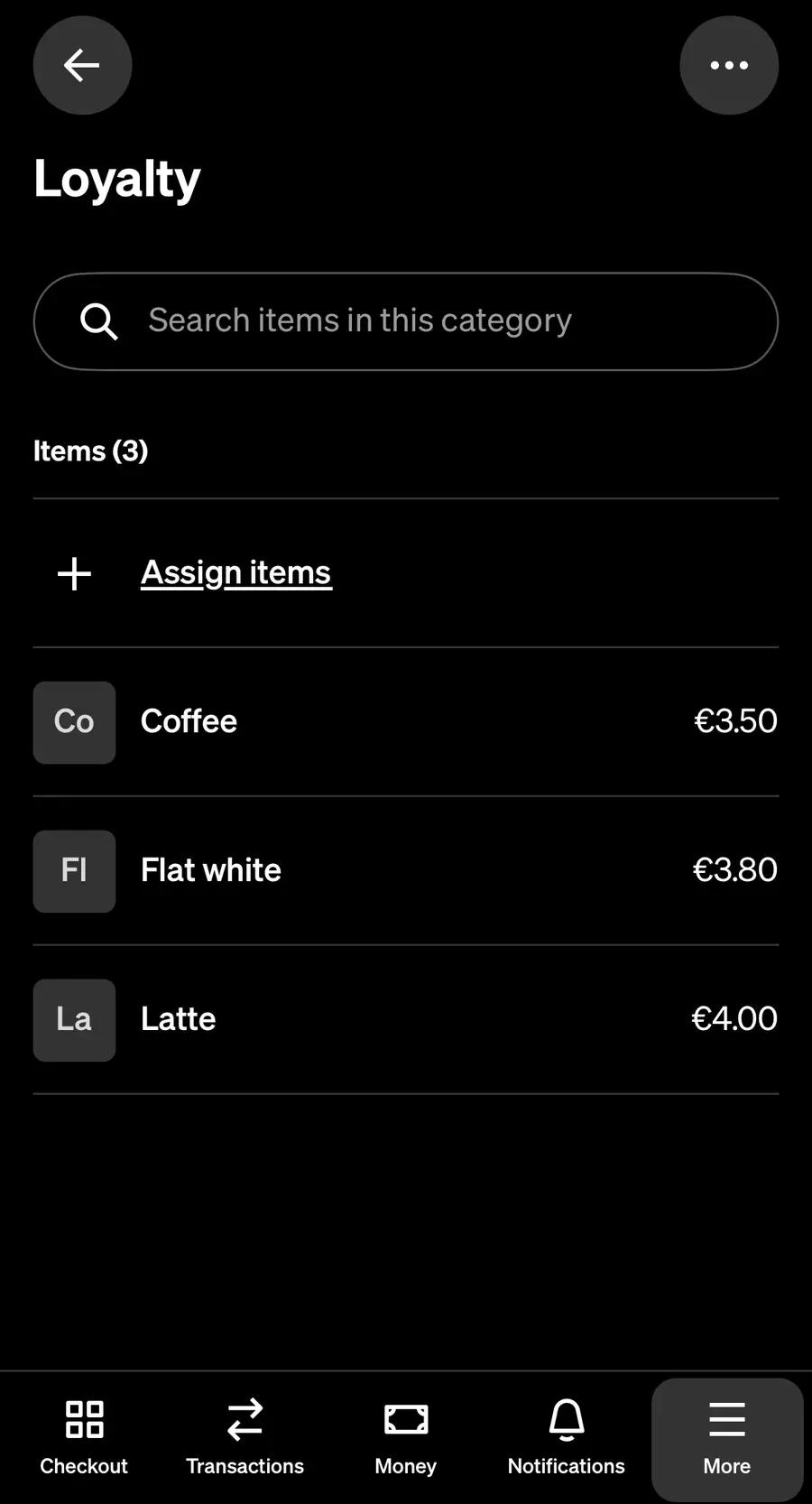
Tick every item that should earn points, then tap Save. They are now listed in Loyalty.
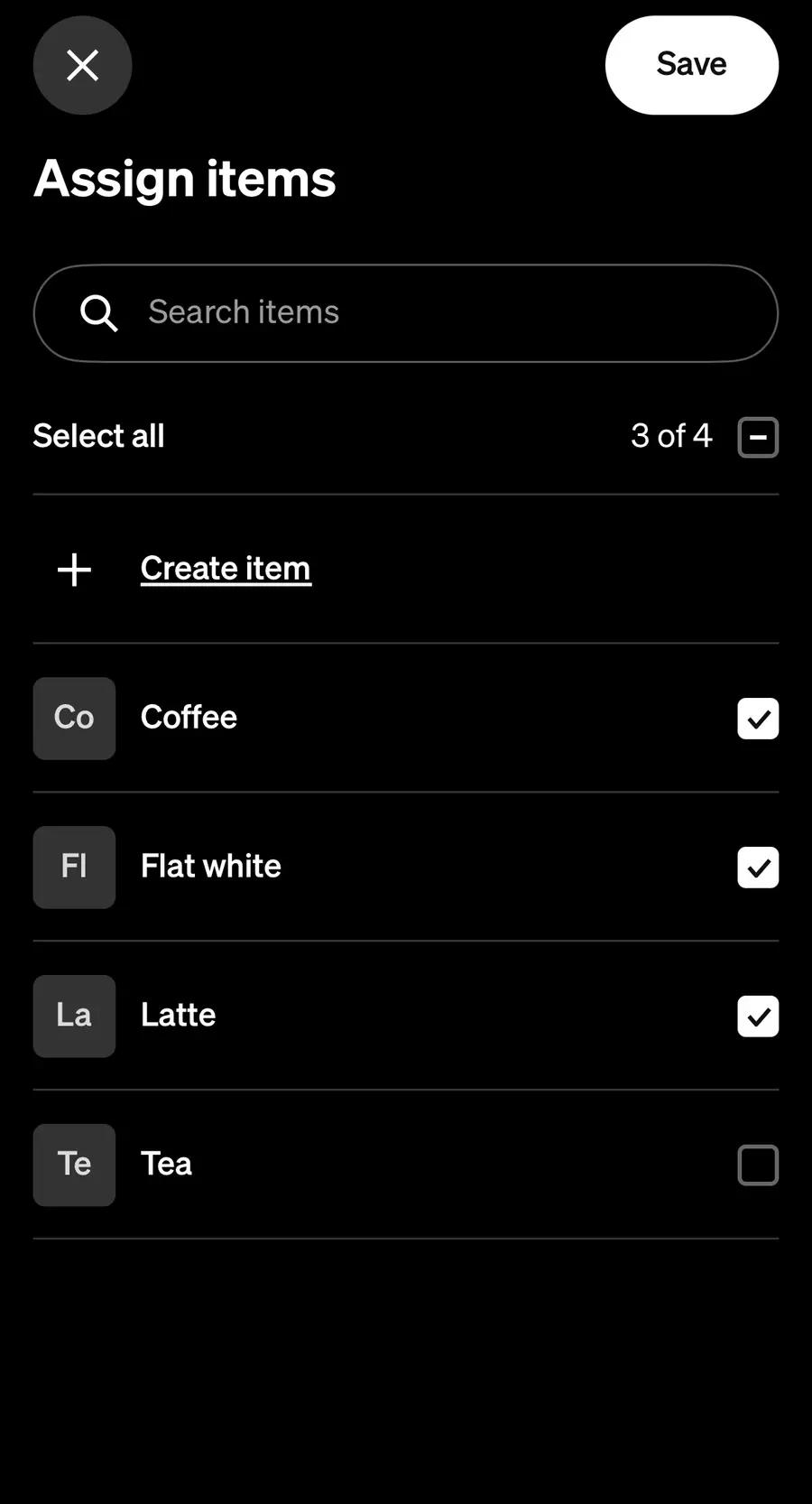
Square's Assign items list with Coffee, Flat white and Latte ticked and Tea not, with the ticked items and Save marked
Square, firstTick them, then Save.
The Loyalty category listing Coffee, Flat white and Latte, marked
Square, thenYour items in Loyalty.
Items that come in versions All the versions of one item earn together, such as a Croissant that can be Plain or Almond. To have only one of them earn, make them separate items in Square, like Plain croissant and Almond croissant.
Put items in Loyalty itself Add them straight to Loyalty, not to a category inside it. Only items in Loyalty itself earn points.
5

Check it at your till

In Square

Tap Checkout at the bottom, then Library. Loyalty is in the list, with how many items it holds. Your items are still in their other categories too, so your staff can ignore the Loyalty row and ring up sales just as they always do.
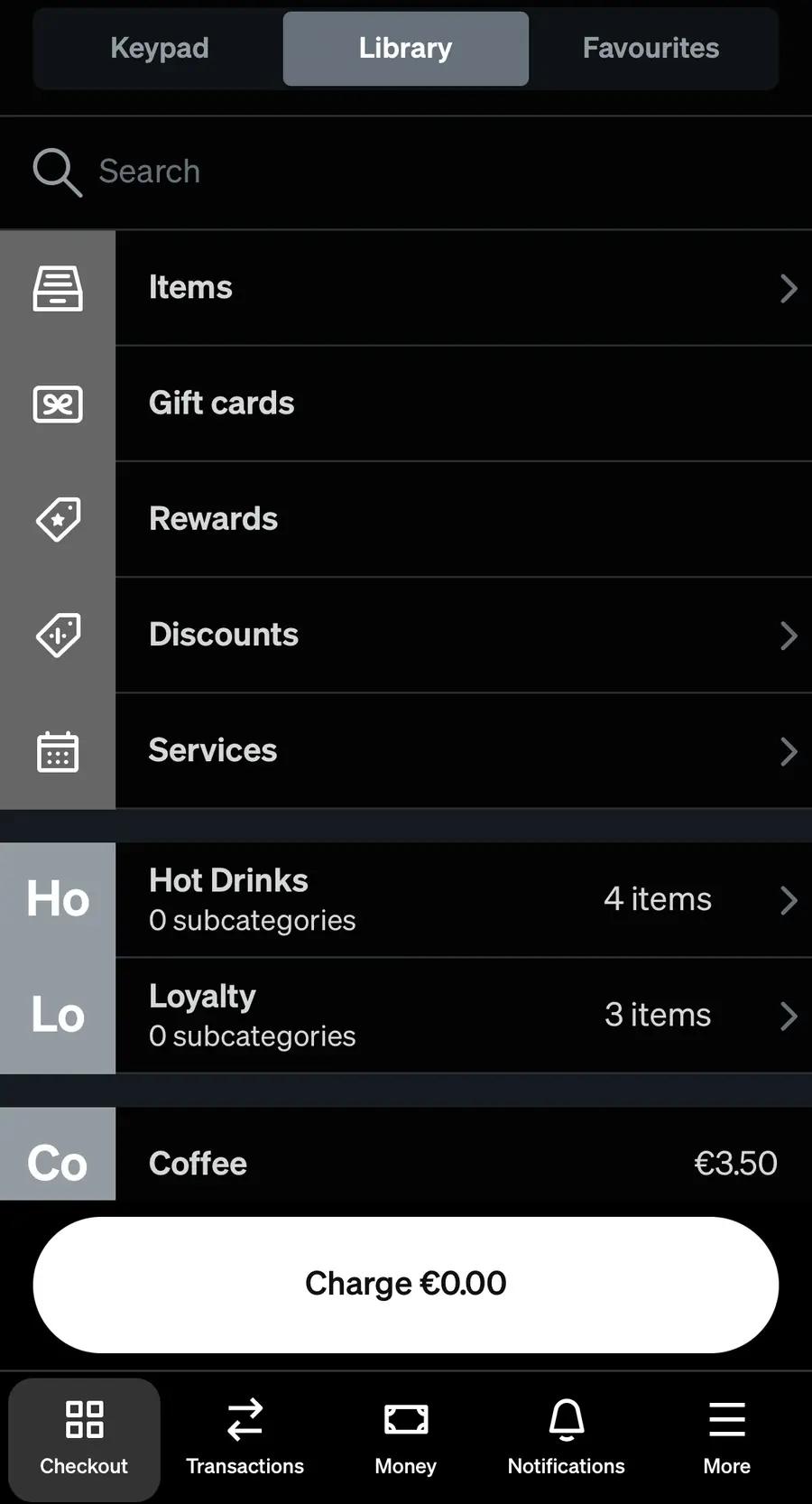
Square's Checkout Library with Hot Drinks at 4 items and Loyalty at 3 items, with the Loyalty row, the Library tab and the Checkout tab marked
SquareLoyalty in your Library, with its items counted.
Does Categories say 0 items? Square's Categories screen can take a while to count the items you added. Your Library shows the right number straight away.

Task 2 of 2 · In Joyal

Choose Loyalty

Now tell Joyal to give points for your Loyalty items only. You can change this at any time.

6

Open What earns points

In Joyal

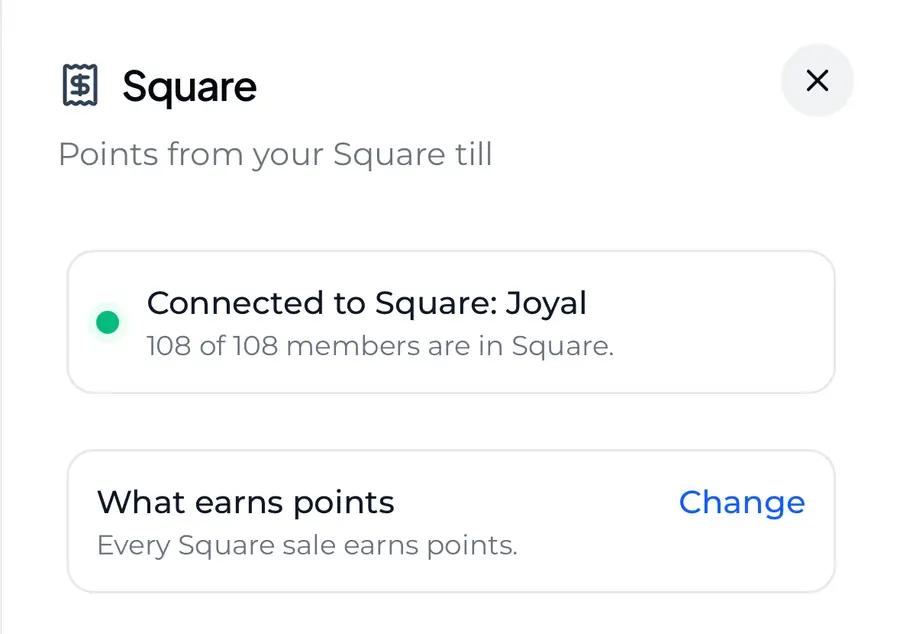
Go to Settings, then Square. Under What earns points, tap Change.
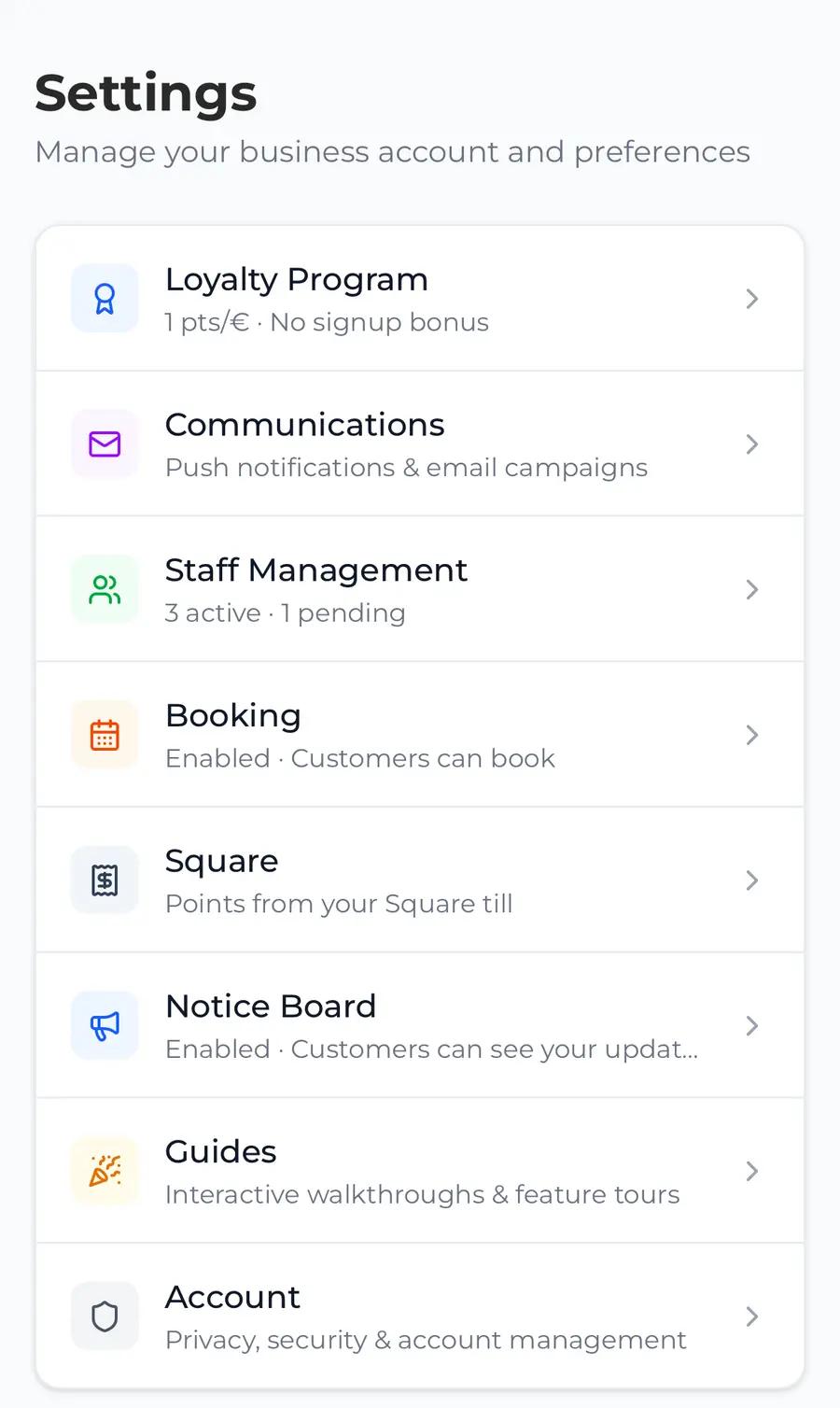
Joyal's Settings page with the Square row marked
Joyal, firstSettings, then Square.
Joyal's Square screen, connected, with What earns points reading Every Square sale earns points, and Change marked
Joyal, thenChange.
Does it say Not connected? Connect Square to Joyal first. Our guide Connecting to Square shows you how.
Does it say Update Square access? Square needs your OK to share your item list with Joyal first. Tap Update Square access, sign in to Square and tap Allow. Your members stay in Square just as they are, and back in Joyal, Change is there.
7

Choose Loyalty

In Joyal

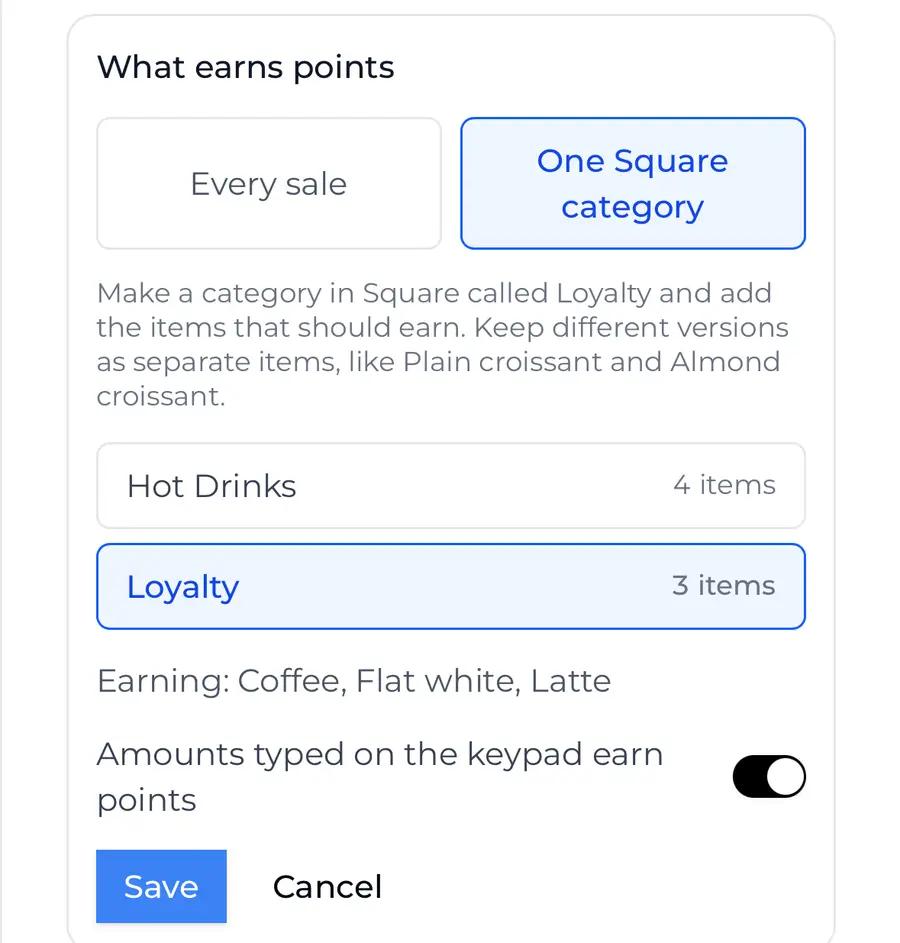
Tap One Square category. Your Square categories appear, each with how many items it holds. Tap Loyalty, and check the items after Earning are the ones you ticked in Square.
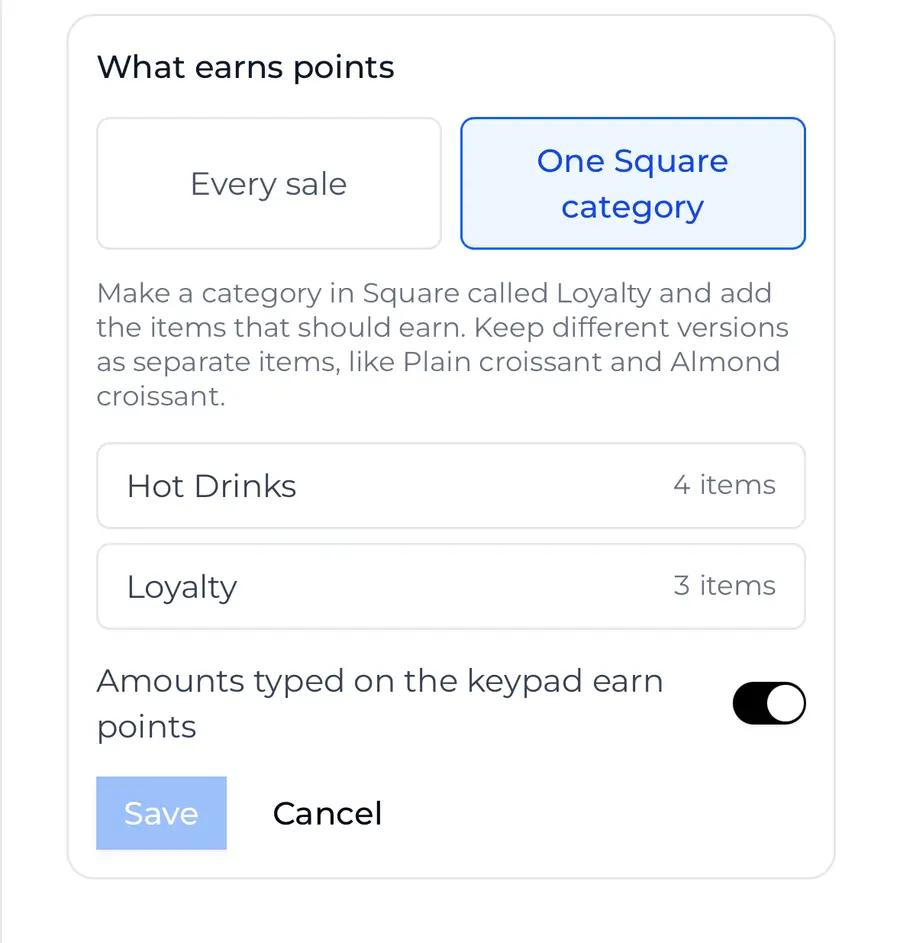
What earns points open, with One Square category marked, and Hot Drinks and Loyalty listed with their item counts
Joyal, firstOne Square category.
Loyalty picked, with Earning: Coffee, Flat white, Latte under the list, both marked
Joyal, thenLoyalty, and its items.
8

Choose for the keypad, then Save

In Joyal

Amounts typed on the keypad earn points is for an amount you type on Square's Keypad instead of ringing up an item. Leave it on, and those amounts earn points as they do now. Switch it off if only your Loyalty items should earn. Then tap Save.
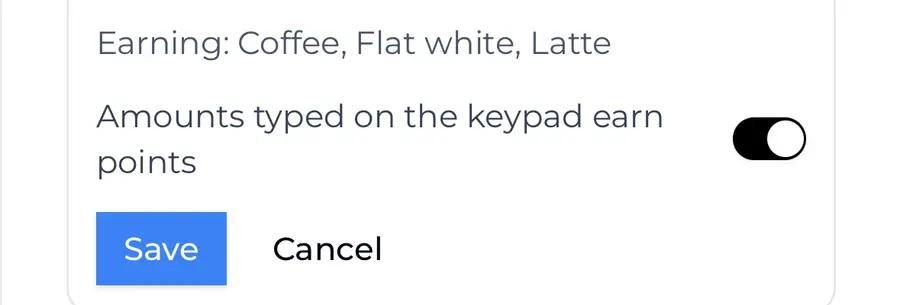
The switch Amounts typed on the keypad earn points, on, and the Save button, both marked
DetailThe keypad switch, then Save.
9

Check it is saved

In Joyal

The box now says Only items in your Loyalty category earn points, with your items listed under it. Close it with the X.
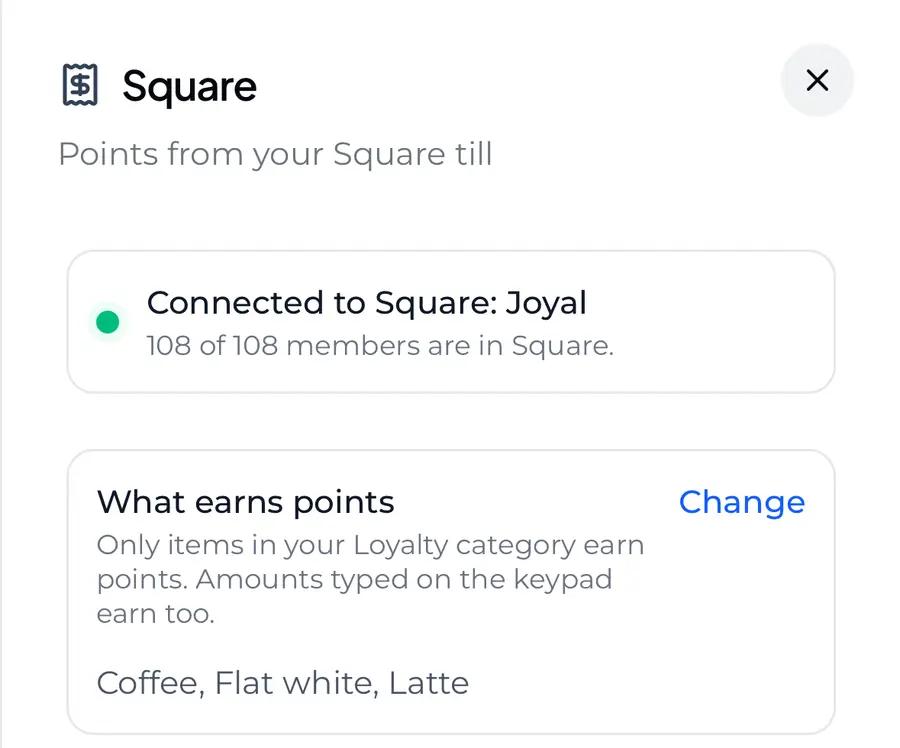
What earns points reading Only items in your Loyalty category earn points. Amounts typed on the keypad earn too, with Coffee, Flat white, Latte under it, marked
JoyalSaved.

Last thing · In Square and Joyal

Make a test sale

A small real sale shows that only your Loyalty items earn. It takes two minutes.

Who to test with A member of staff, or a friend who is one of your members. Your own owner account is not added to Square, so it will not scan.
10

Ring up a test sale

In Square

Ring up one item from Loyalty and one that is not. In our example, Coffee is in Loyalty and Tea is not. Add your member to the sale and charge as usual. Cash is easiest for a test.
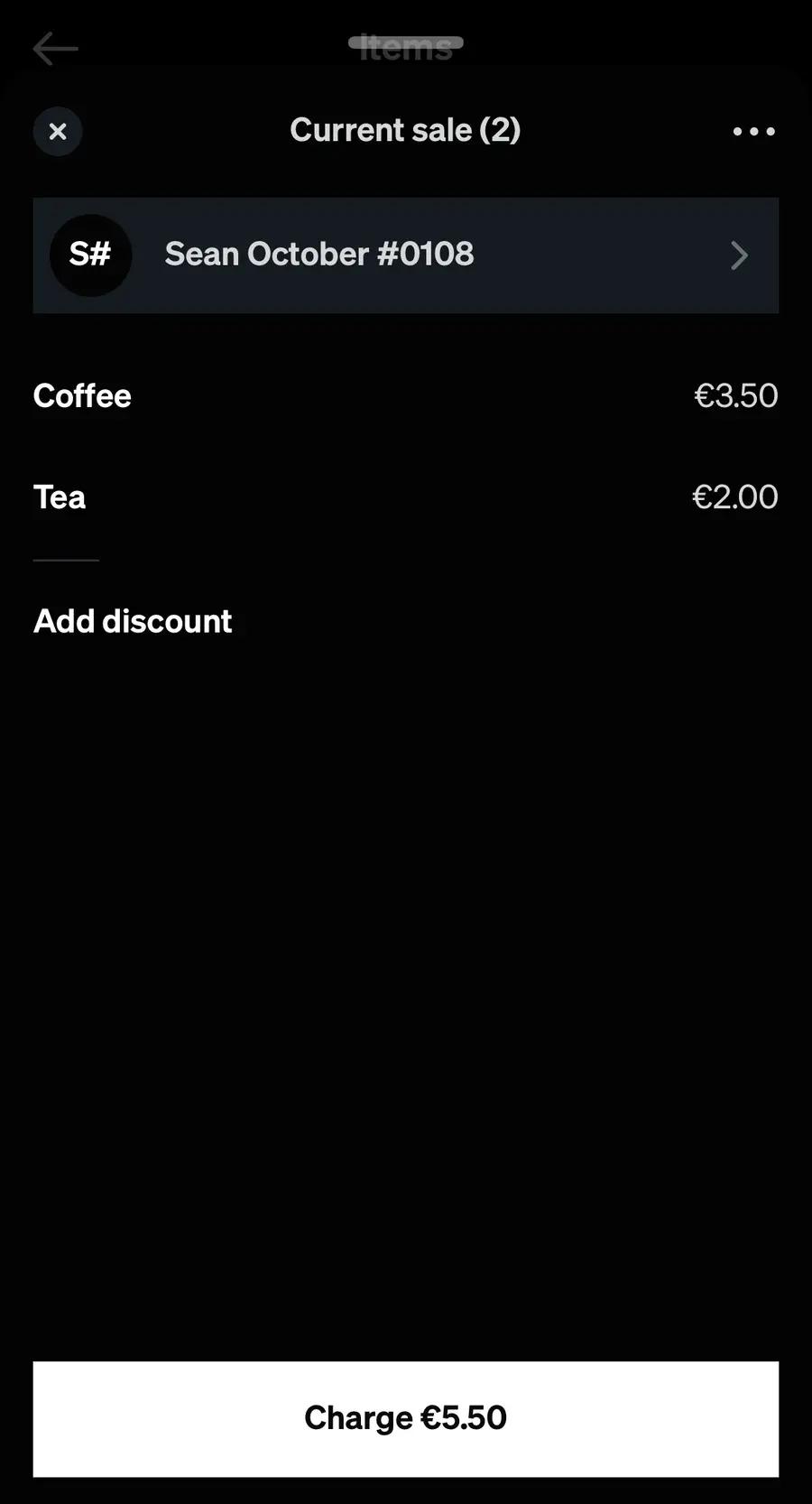
Square's Current sale with the member Sean October #0108 added, a Coffee at €3.50 and a Tea at €2.00, and Charge €5.50, all marked
SquareThe member, a Coffee and a Tea, then Charge.
11

On your customer's phone

In Joyal

Their points go up for the Loyalty item only. Recent Activity shows both amounts, such as Purchase: €5.50, €3.50 earns points.
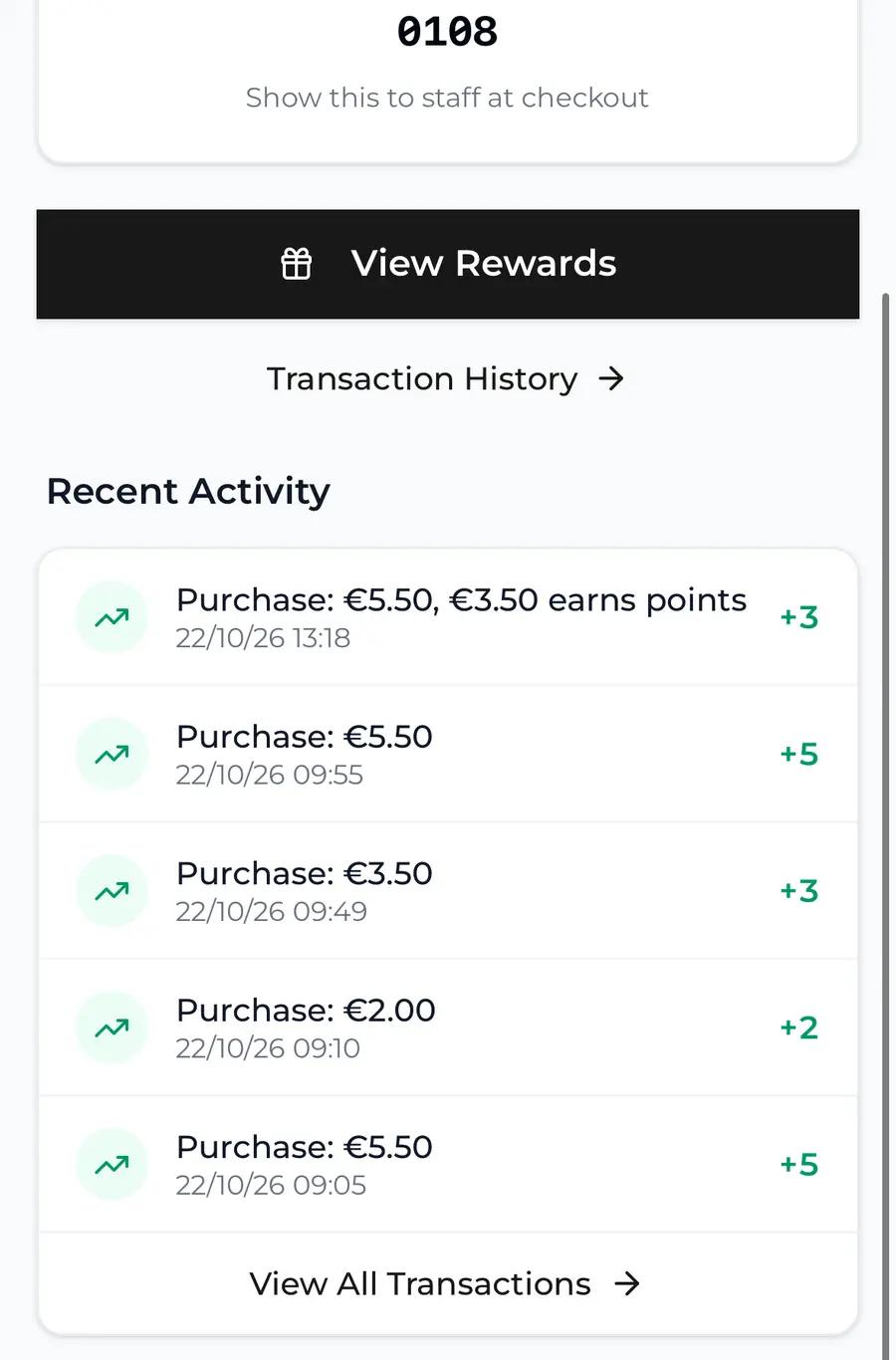
The customer's home screen with Purchase: €5.50, €3.50 earns points, plus 3, marked under Recent Activity
CustomerPoints for the Coffee only.
12

In your Square settings

In Joyal

Go to Settings, then Square. Under Recent Square sales, the sale shows how much of it earned, such as €5.50, €3.50 earned. Close it with the X. You are all set.
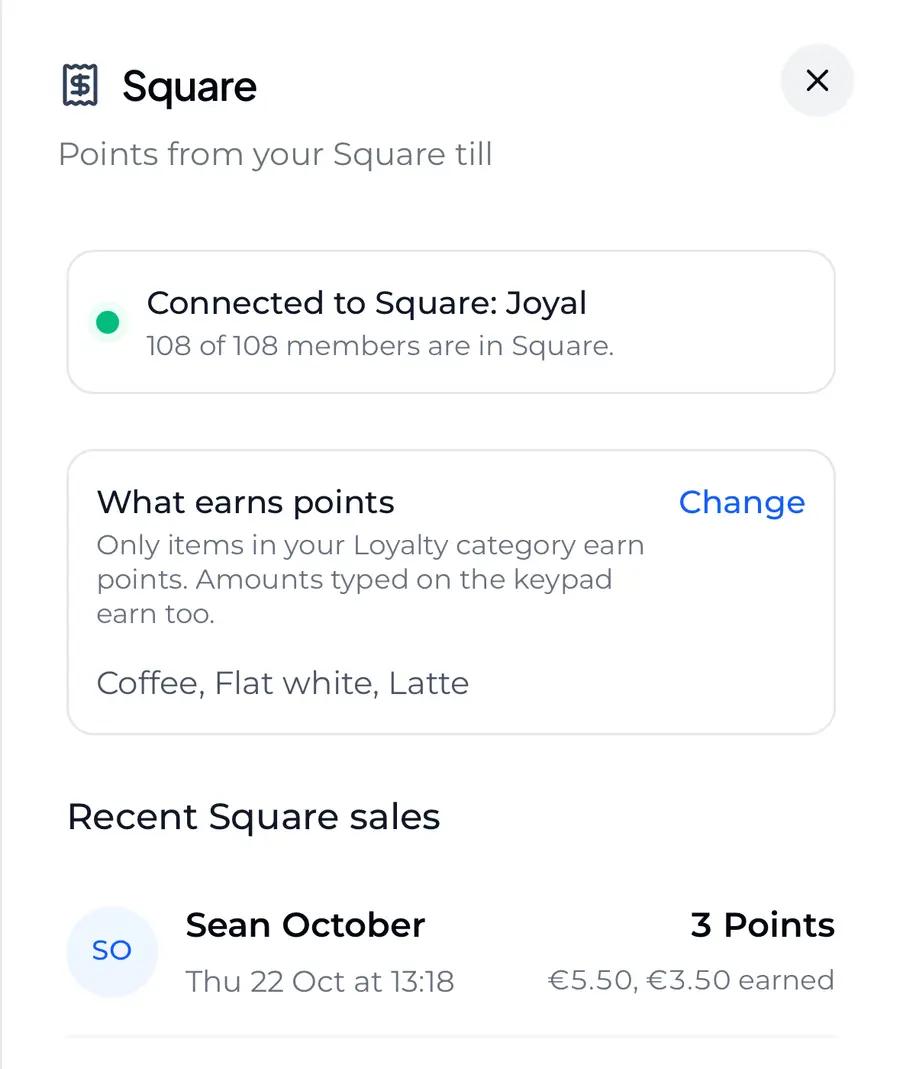
Joyal's Square screen with Loyalty chosen, and the test sale under Recent Square sales, 3 Points, €5.50, €3.50 earned, marked
JoyalThe sale, and how much of it earned.

Notes

Good to know

Changing your items Add items to Loyalty, or take them out, in Square at any time. Joyal checks with Square at every sale, so a change counts from the very next one, and there is nothing to do in Joyal. If Loyalty is ever empty, no sale earns points until you add some.
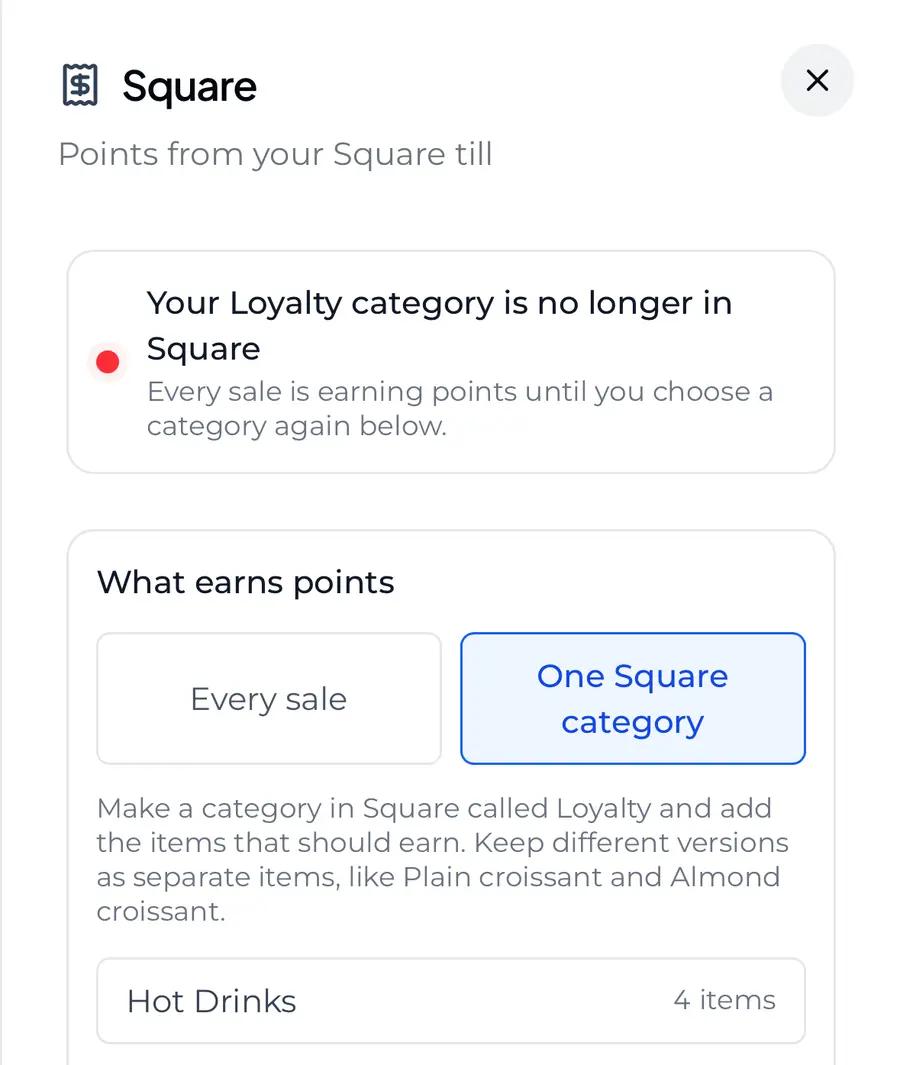
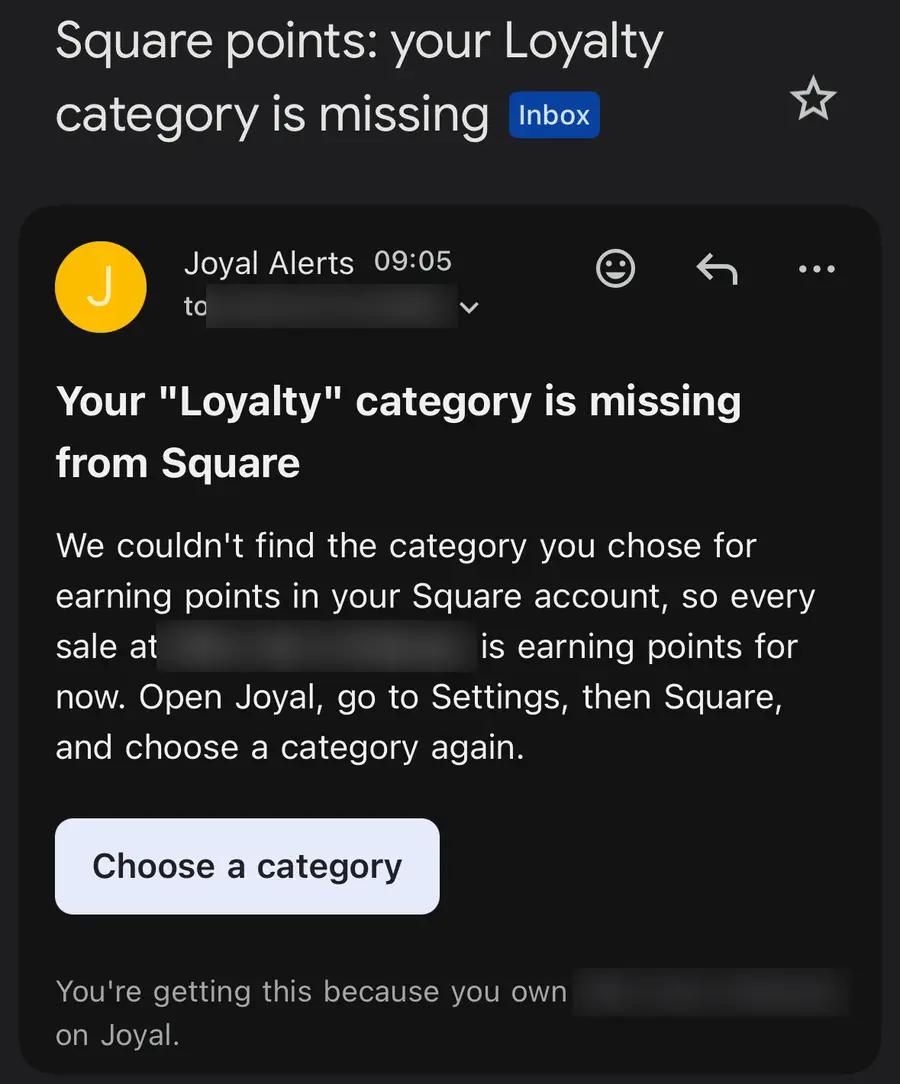
Renaming or deleting Loyalty Rename it in Square whenever you like: Joyal follows the new name. If it is deleted, every sale earns points again, so nobody misses out. We email you, and the top line of your Square settings in Joyal turns red. Make a category again and choose it under What earns points.
Joyal's Square screen with the red line Your Loyalty category is no longer in Square, marked, and What earns points open to choose a category again
JoyalThe red line, with the box open to choose again.
The email Square points: your Loyalty category is missing, from Joyal Alerts, with the Choose a category button marked
EmailChoose a category opens your Square settings in Joyal.
A sale with nothing from Loyalty It earns no points, but still counts as a visit. If you scan that member in Joyal, it says Square recorded the sale and nothing in it earns points, so there is no need to add points by hand.
Tips, discounts and gift cards Tips never earn points, and neither do gift cards or service charges. Discounts come off first, so points are worked out on what was paid for the Loyalty items, at your usual rate.
Going back to every sale In Joyal, go to Settings, Square, then under What earns points tap Change, Every sale and Save.

Joyal · Choosing what earns points in Square. Stuck on a step? Send us its number and a photo of your screen, and we will help from there.